How to add or edit Menu Categories
Categories are the main sections a customer sees on your menu. Inside categories, you’ll have items, modifier groups, and modifiers.
Adding a new category
- Click on the ADD CATEGORY button.

- Input your category Name and Description.
- Click SAVE.
Editing a menu category
- Click on the edit icon to the right of your category name and select Edit Category.
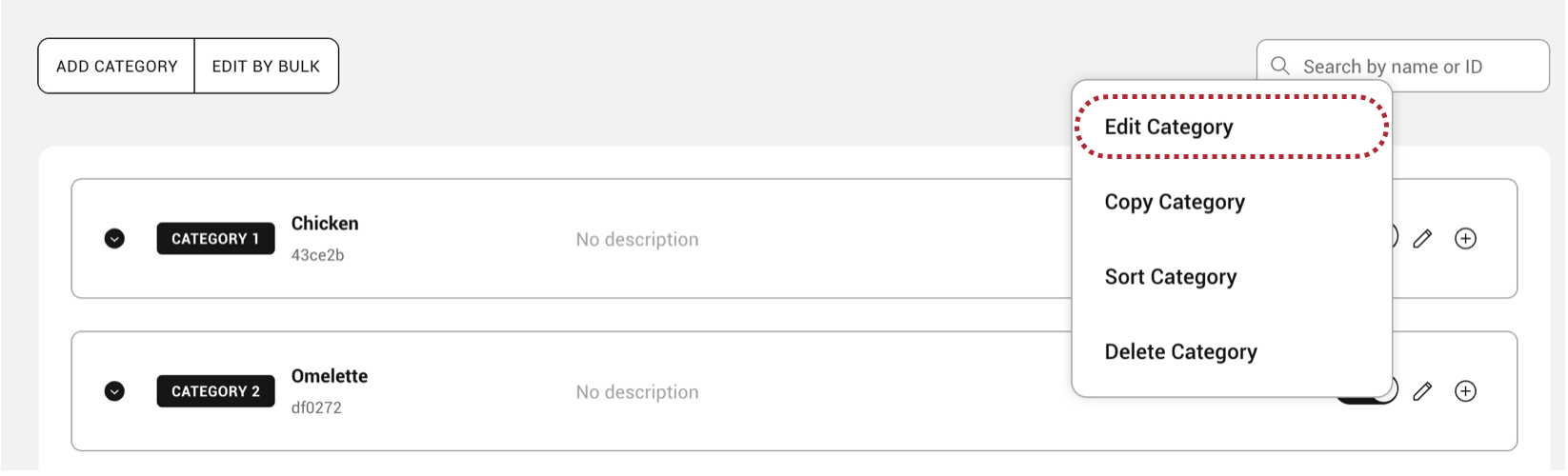
- Adjust the category Name or Description.
- Click SAVE.
Copying a menu category
- Click on the edit icon to the right of your category name and select Copy Category.
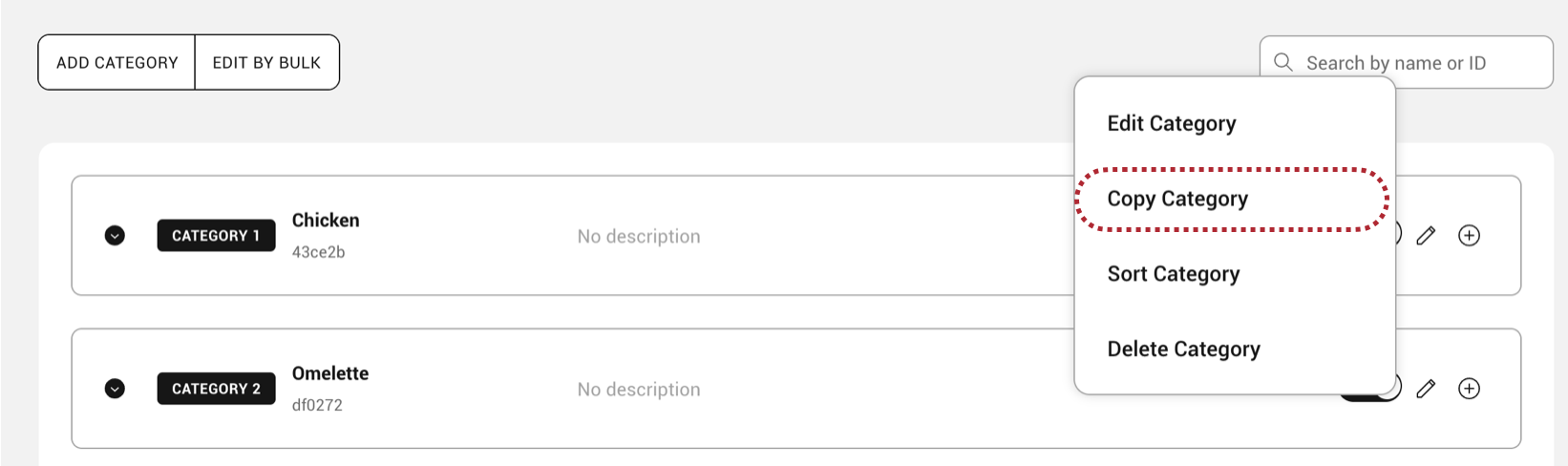
- Select the Target Location, Target Merchant and Target Menu, and click SAVE.
Sorting a menu category
- Click on the edit icon to the right of your category name and select Sort Category.

- Drag the category cards to reorder your menu, and click SAVE.

Enabling/Disabling a menu category
You can quickly hide a menu category from the diner facing menu across all platforms by toggling the switch next to each menu component. To re-enable, just toggle the switch back.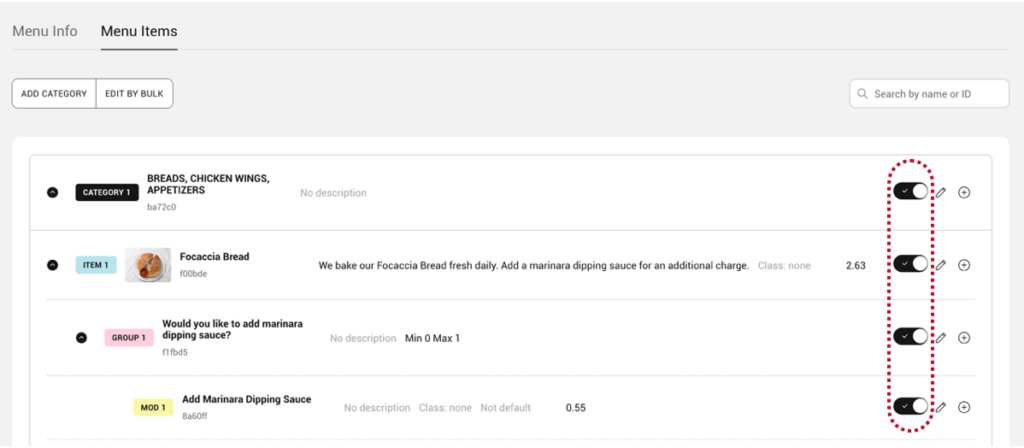
Deleting a menu category
- Click on the edit icon to the right of your category name and select Delete Category.
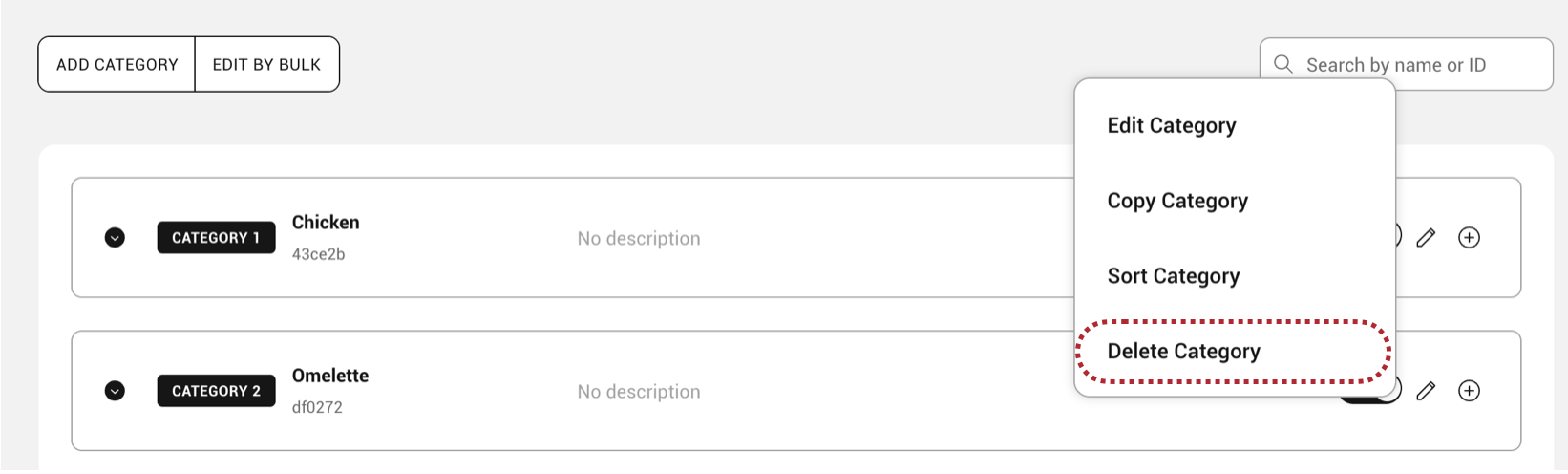
- Click Confirm.