How do I make changes to an item on my online ordering menu?
Note: If your Menu Editor looks different, reference this article for instructions on our Legacy Menu Editor.
Step by Step Instructions:
- Log in to your ChowNow dashboard.
- Click on “Headquarters”, then the name of your location.
- Click on “Menus” then “Menu Editor” on the left sidebar.
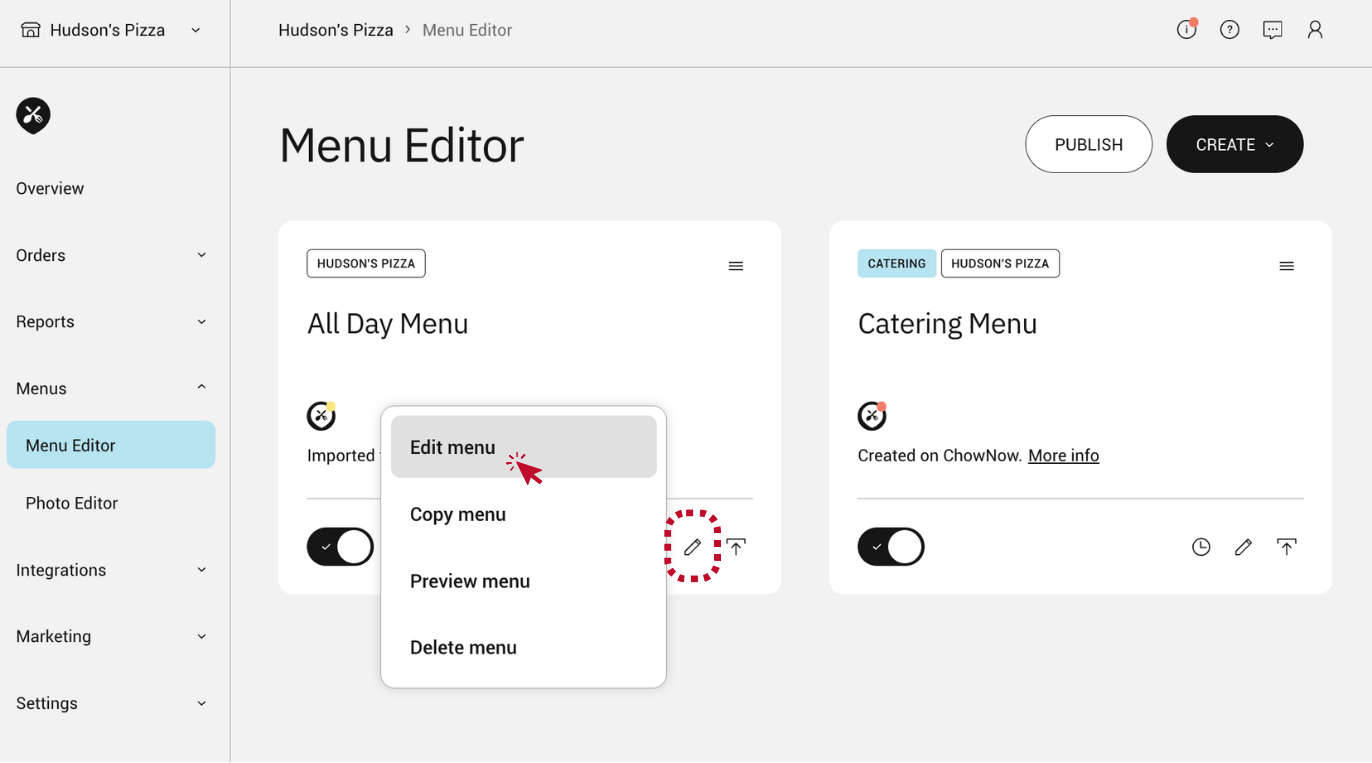
- Click the pencil icon within the menu you would like to edit, and select “Edit menu”.
![]()
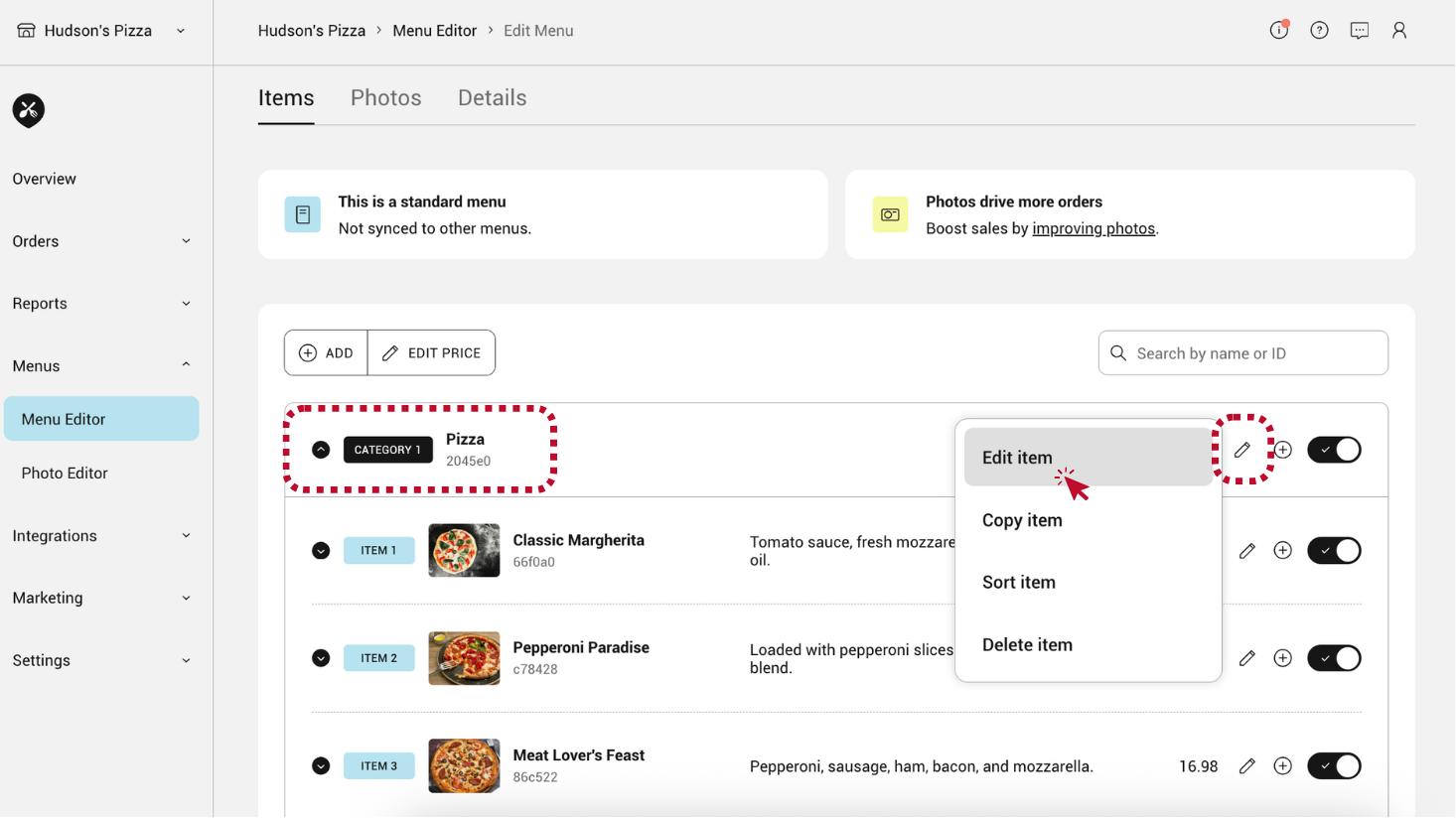
- This will take you to the “Items” tab, where you can edit menu items, categories, and modifiers.
- To edit a particular item, click into the “Category” it’s in, then click the pencil icon, and select “Edit item”.
![]()
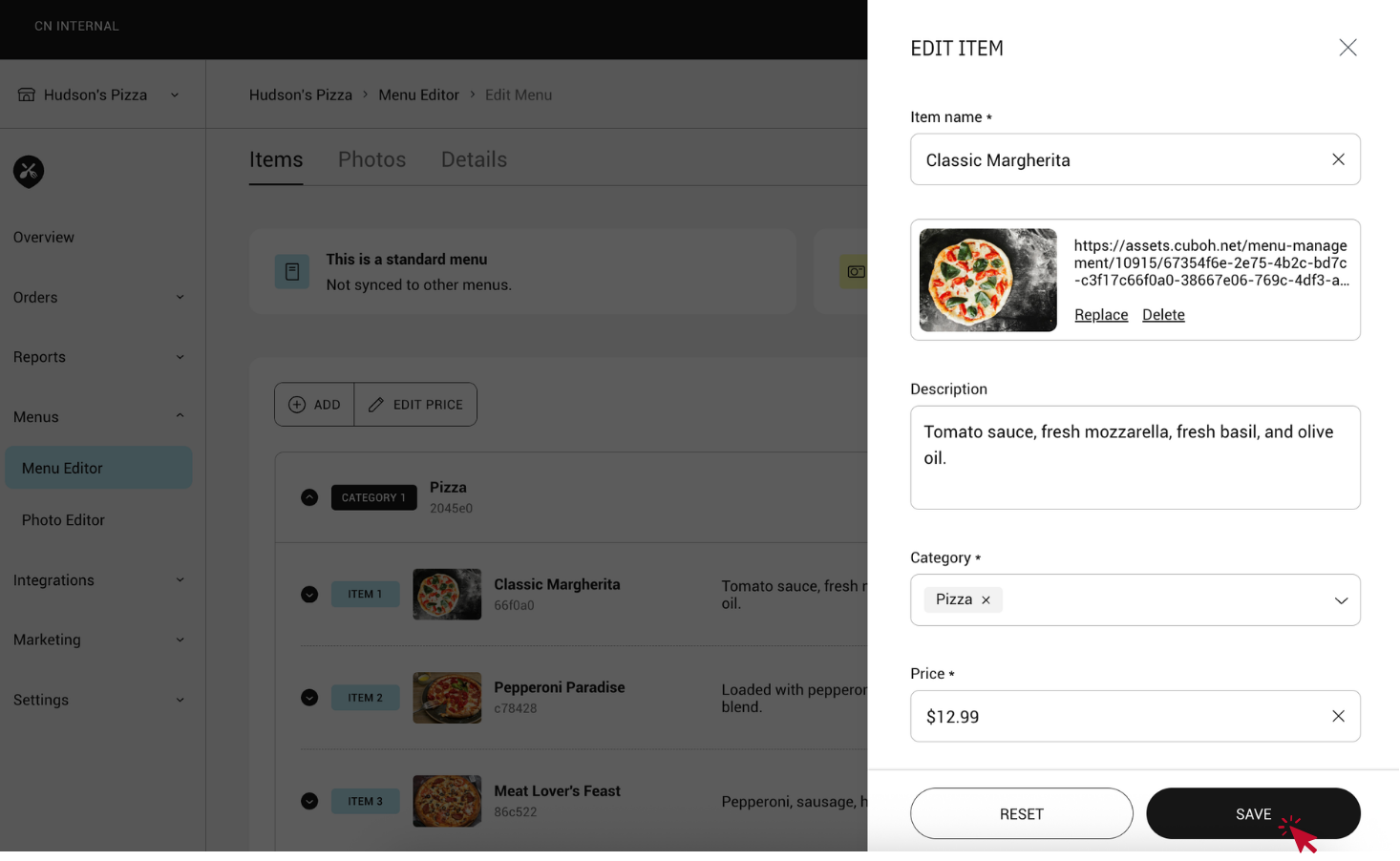
- From here you can edit the item’s name, image, description, category it belongs to, price, modifier groups, and class (if applicable).
- Click “Save” to save any changes.
![]()