Introduction to the ChowNow Tablet with Order Aggregation
Note: The content in this article is specifically for restaurants using the Business Manager App on a ChowNow iPad, with Order Aggregation enabled.
The ChowNow Tablet is where you manage incoming orders and day-to-day settings for your restaurant.
Video Walkthrough
Getting Started
First, open the Business Manager app and log in with your username and password. After logging in, you’ll see your live locations and any locations that are pending onboarding.
Select a location to manage orders and settings.
Manage orders
On the Orders homepage you’ll see three tabs:
- New: orders that have come in and are waiting to be accepted
- Accepted: orders you have accepted and are preparing
- Ready: orders that are ready for pickup or delivery
Restaurants with Order Aggregation enabled will see all ChowNow orders in the Orders view, as well as orders from any connect third-party apps like Uber Eats, Grubhub, and DoorDash.
New Orders
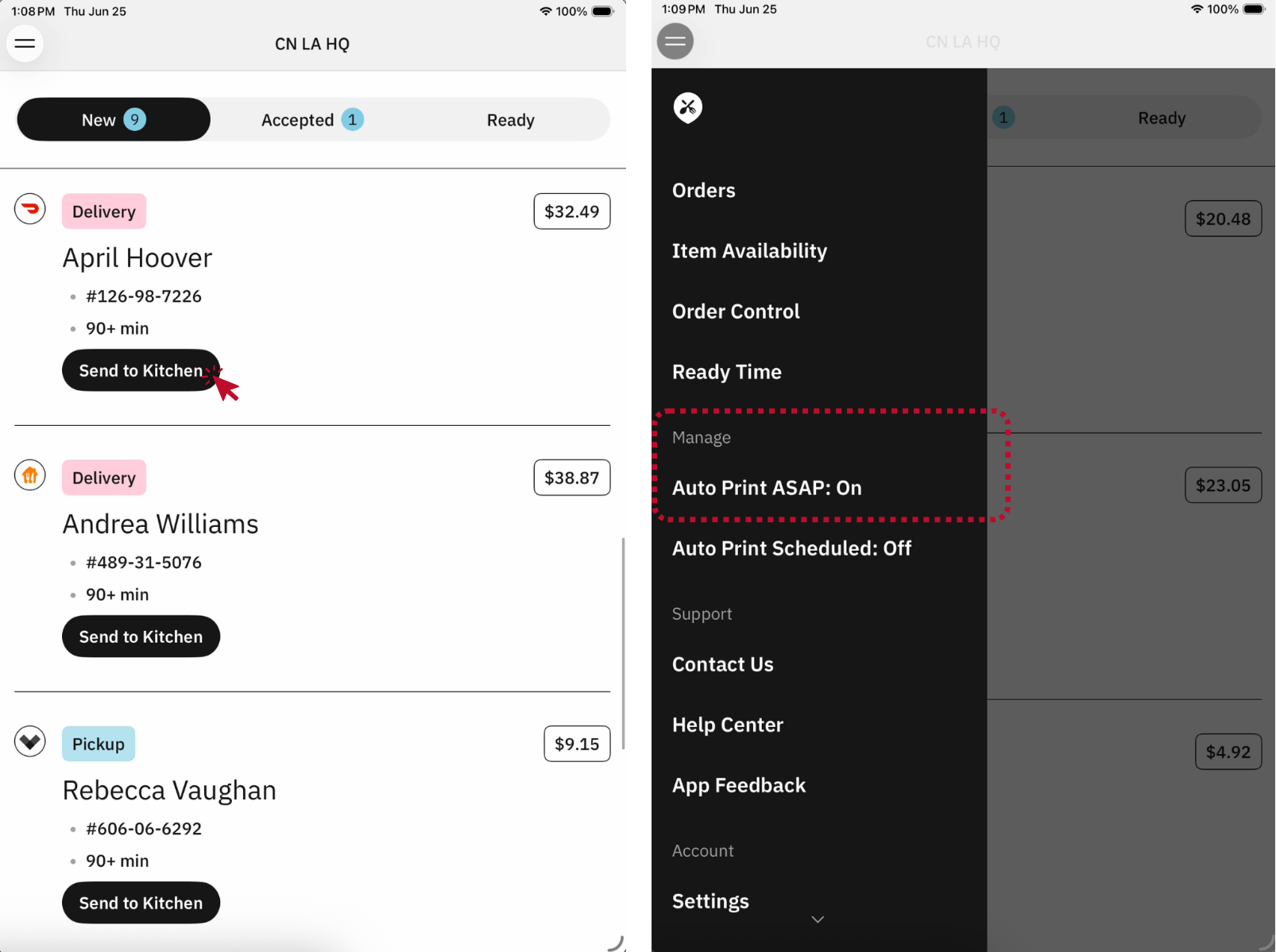
Tapping “Send To Kitchen” will accept the order and inject it into your designated Kitchen Printer or Point of Sale System.
Pro Tip: The Auto Print ASAP functionality allows you to automate this process, so you don’t need to select “Send To Kitchen” each time an order comes in.
Read More: Tablet Setup: How to Automatically Print Orders on Your Tablet
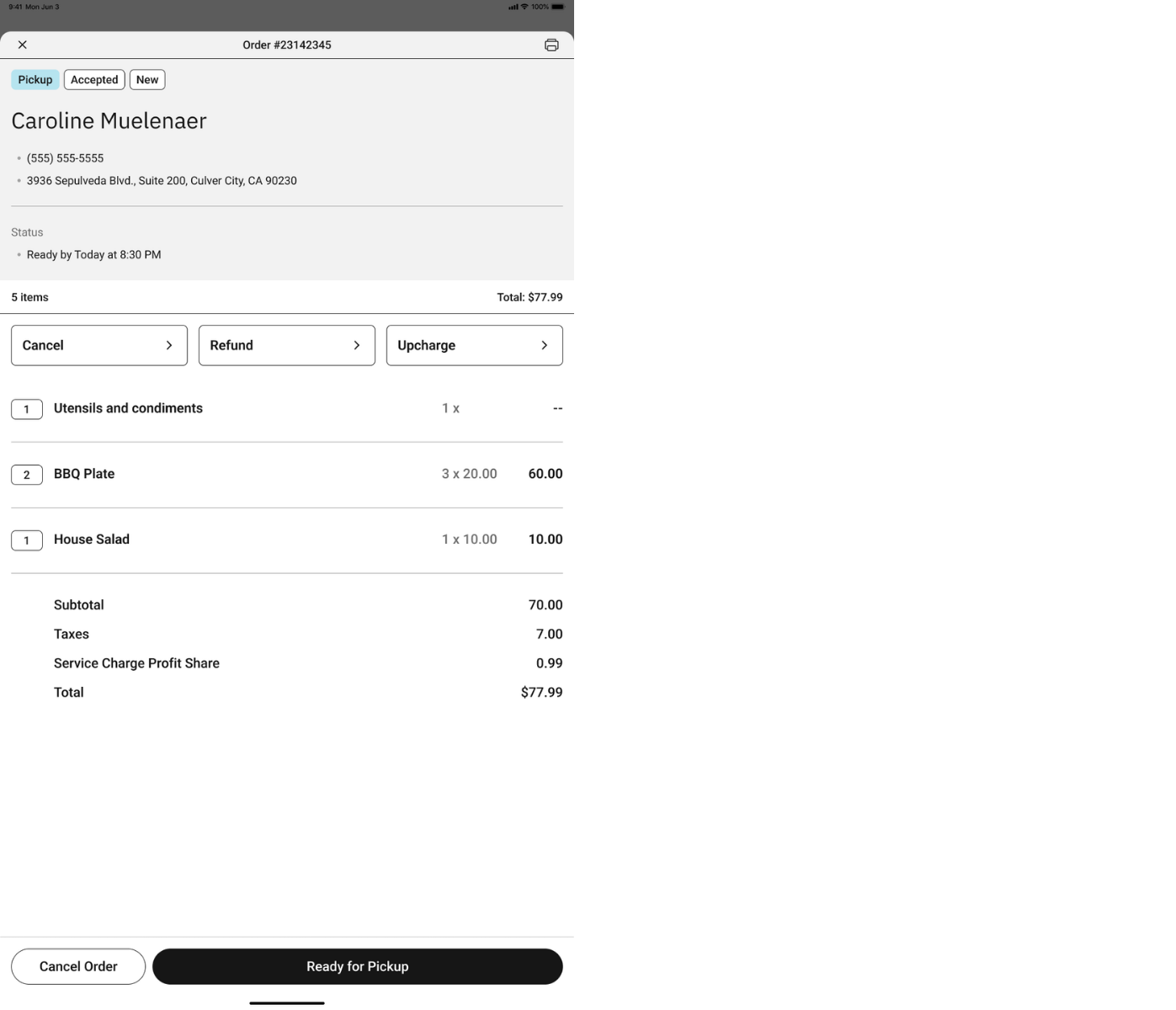
Simply tap on an order to see more details—including an itemized report of what’s on that order, the customer name and contact information, and any tips, taxes, discounts, or special instructions.
Accepted Orders
Tapping on an in-progress order will allow you to take additional action on an order, such as: cancelling, refunding, or adding an upcharge as necessary.
Finally, once an accepted order is prepared you can mark the order as “Ready for Pickup” or “Ready for Delivery” to move the order to the “Ready” tab.
Item Availability
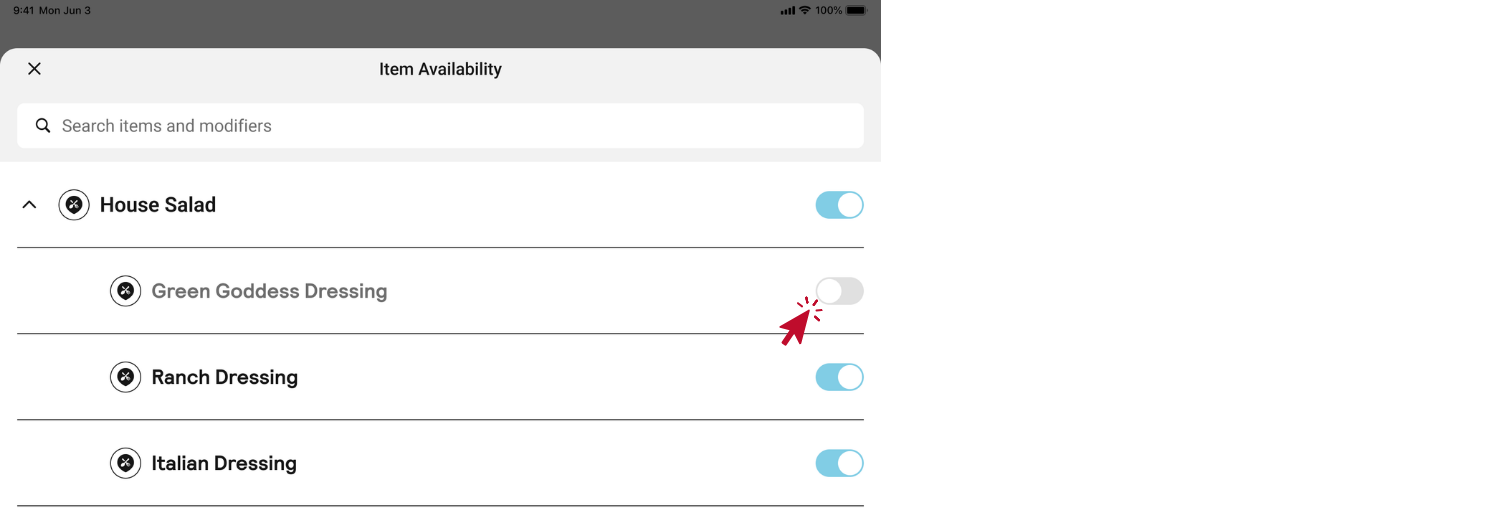
Use Item Availability to take an item off your menu, for example when you run out of an ingredient. You can scroll through your menu to find the item, or use the search bar to find it faster.
If your menu is connected to multiple platforms (i.e., ChowNow, Uber Eats, and DoorDash), you only need to toggle the item once and availability will be updated across storefronts.
Read More: How to Manage Menu Item Availability from the Tablet
Order Control
Order Control shows your third-party order integrations, including their status and any errors. Check here if you think orders from a connected platform aren’t coming through.

Read More: How to Manage Online Ordering Partner Apps on Your Tablet
Ready Time
Set a default ready time for pickup and delivery orders.

Read More: Tablet Setup: Adjust Default Order Ready Time for Incoming Orders
Auto Print
Choose your print settings for ASAP and scheduled orders.
Read More: Tablet Setup: How to Automatically Print Orders on Your Tablet
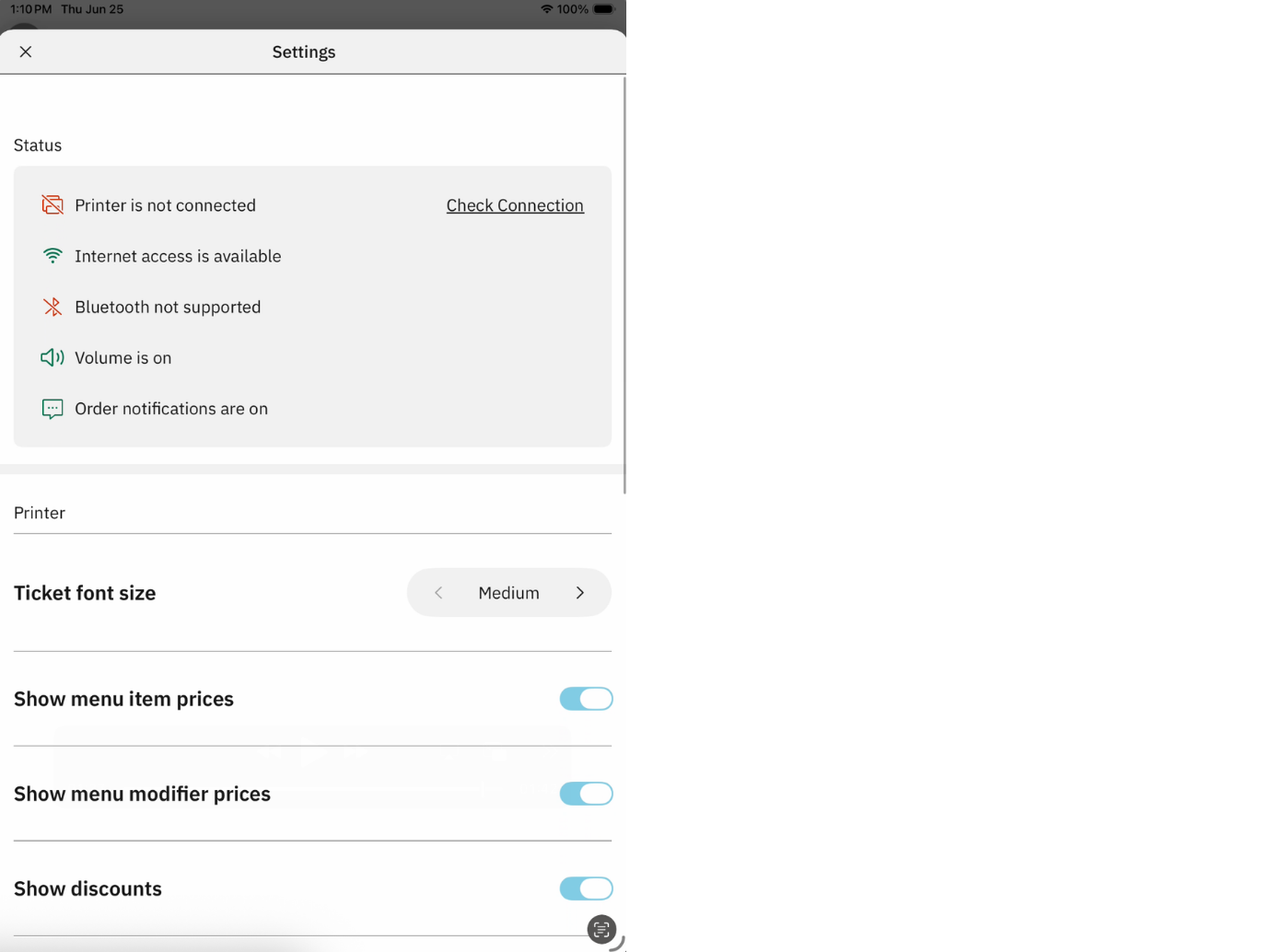
Settings
- Status: Check the status of your printer, internet connection, and Bluetooth.
- Ticket customization:
- Change the ticket font size
- Choose whether cancelled orders print
- Adjust what information appears on your tickets
- Sound: Set the volume level and assign an alert sound new, canceled, and scheduled orders.
Read More: Tablet Setup: Printer Settings
Read More: How to Change the Notification Sounds on Your Tablet
Need help?
Contact ChowNow Support at [email protected], or visit the Help Center for more articles.