How to Manage Menu Item Availability from the Tablet
A step-by-step guide to manage item availability from the tablet.
The steps depend on your tablet type:
ChowNow iPad
Mark an Item or Modifier as Sold Out (86’d)
- Open the Business Manager app and select your location.
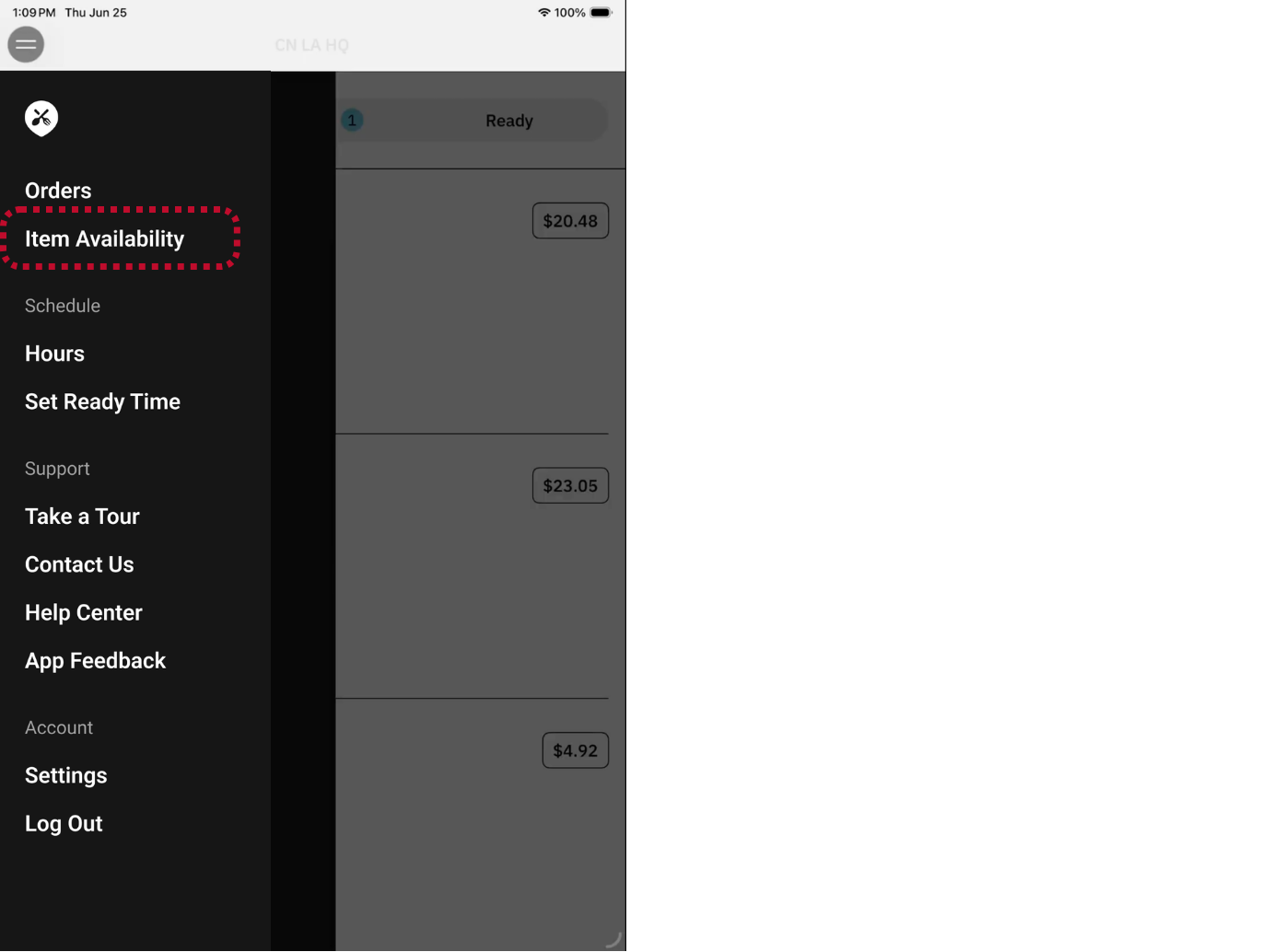
- Tap the two horizontal lines in the upper left corner to open the navigation menu.
- Select “Item Availability”.
- For accounts with Order Aggregation: From here, you can view and manage the status of active menu items across all integrated online storefronts.
![]()
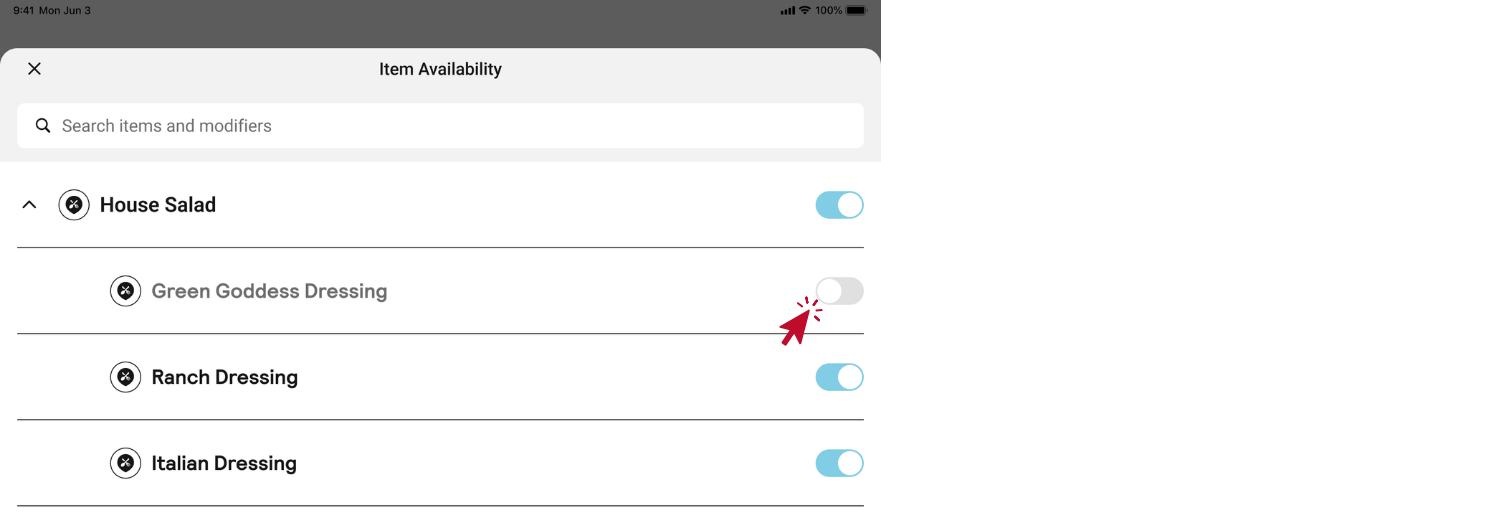
- Using the top search bar, you can search by item or modifier name.
- Take individual items or modifiers offline by flipping the switch on the right-hand side of the screen.
![]()
Tip For accounts with Order Aggregation: If your menu is connected to multiple platforms (i.e., ChowNow, Uber Eats, and DoorDash), you only need to toggle the item once and availability will be updated across storefronts.
Android Tablet
Mark an Item or Modifier as Sold Out (86’d)
- Open the Cuboh App.
- Under “Navigation”, select “Menu”. From here, you can view and manage the status of active menu items across all integrated online storefronts.
- Using the top search bar, you can search by item or modifier name.
- Take individual items or modifiers offline by flipping the switch on the right-hand side of the screen.
- Alternatively, selecting “Mark All Matches as ‘Sold Out’” will take all of the relevant matches offline. In the example below, all of the modifiers in bold (“Add Almonds”) would be taken offline.


Final Notes
Please note that this is a same-day deactivation — meaning that any items or modifiers that are taken offline will reset to “active” availability the following morning at 4am. If you know you’ll be out of stock of an item for a longer period, you should edit this item on your Menu Management page on the Dashboard.