How to Manage Online Ordering Partner Apps on Your Tablet
Note: Managing Online Ordering Partner Apps is only available for restaurants with Order Aggregation enabled.
You can pause or accept orders and manage each of your online storefronts from your tablet. The steps depend on your tablet type:
ChowNow iPad
To pause or accept orders
- Open the Business Manager app and select the location you want to manage.
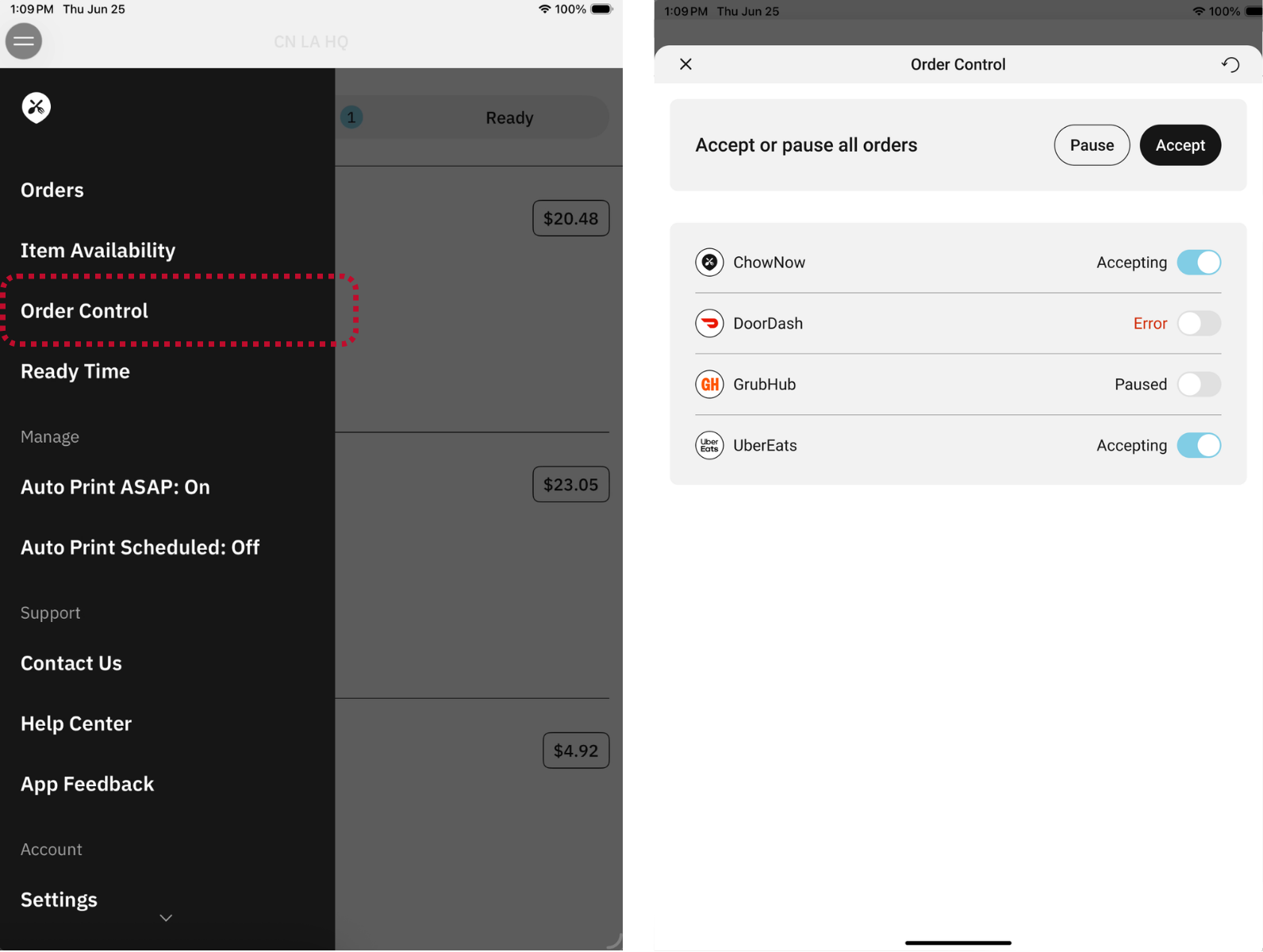
- Tap the two horizontal lines in the upper left corner to open the navigation menu.
- Select Order Control.
- Select Pause to stop all orders, or Accept to resume them. This applies to ChowNow and all integrated storefronts.
To manage individual storefronts
On the Order Control screen, toggle a storefront On to accept its orders or Off to pause them.
Pausing is best for temporary situations, such as closing early or needing a breather.
Android tablet
The Cuboh app manages all of your online storefronts from the Integrations tab.
Activating or deactivating your storefronts
Your Integration Status controls the status of your app menus. When your integrations are active, orders come in during your normal business hours.
Under Navigation > Integrations, you can:
- Open or close all of the online storefronts for a specific merchant.
- Open or close individual online storefronts for all merchants at once.

Toggling integrations is best for temporary situations, such as closing early or needing a breather.
Toggle by Concept: Shows your app integrations by merchant. Select Disable All to take that merchant offline across all of its integrated apps.

Toggle by Integration: Shows your app integrations one by one. Select Disable All to take every integrated merchant offline on that app.

Final notes
You don’t need to do this every day. When your Online Ordering Status is active, orders come in during your normal business hours. Activation requests can take a few seconds to process, so wait 30 seconds between turning stores on or off to make sure the change completes and you aren’t left inactive by mistake.