Tablet Setup: How to Automatically Print Orders on Your Tablet
Auto Print lets you choose whether new orders go to the kitchen automatically or whether you send each one yourself. The steps depend on your tablet type:
ChowNow iPad
To turn on Auto Print:
- Open the Business Manager app and select your location.
- Tap the two horizontal lines in the upper left corner to open the navigation menu.
- Under Manage, set Auto Print ASAP to On.
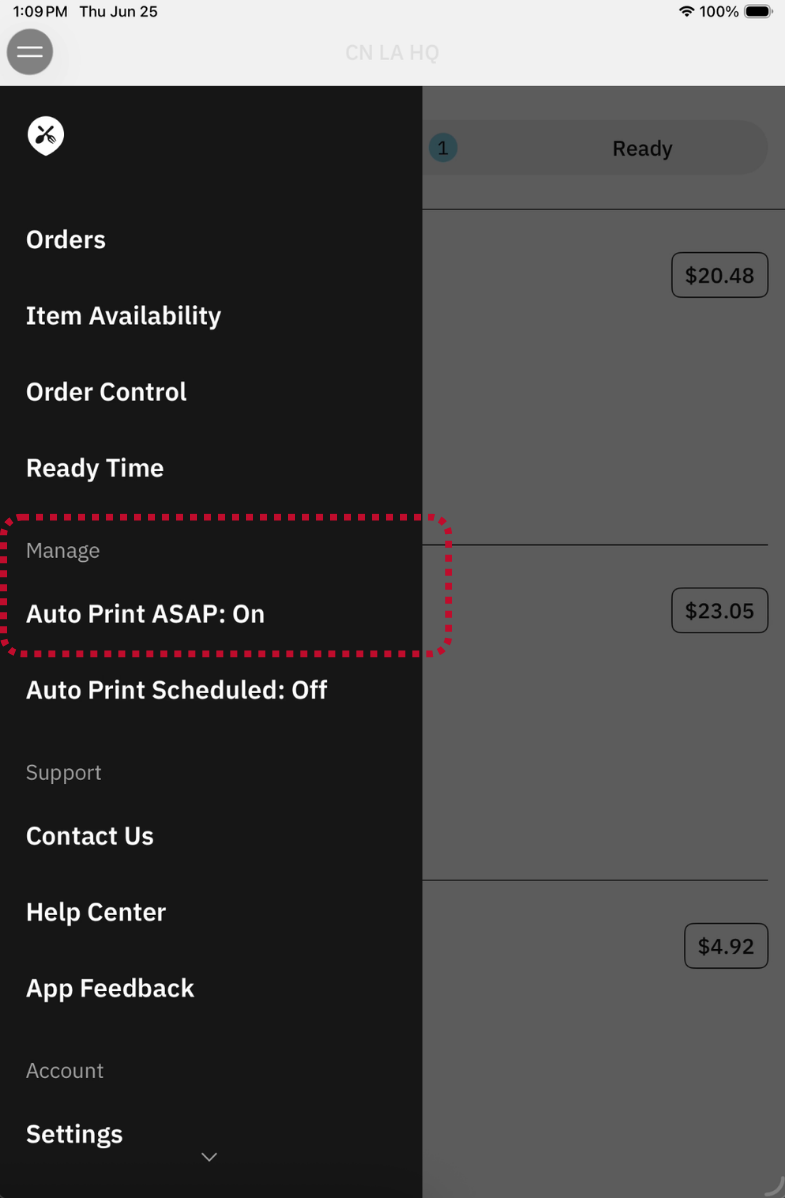
Auto Print ASAP: On
New ASAP orders are sent to your kitchen printer or POS automatically.
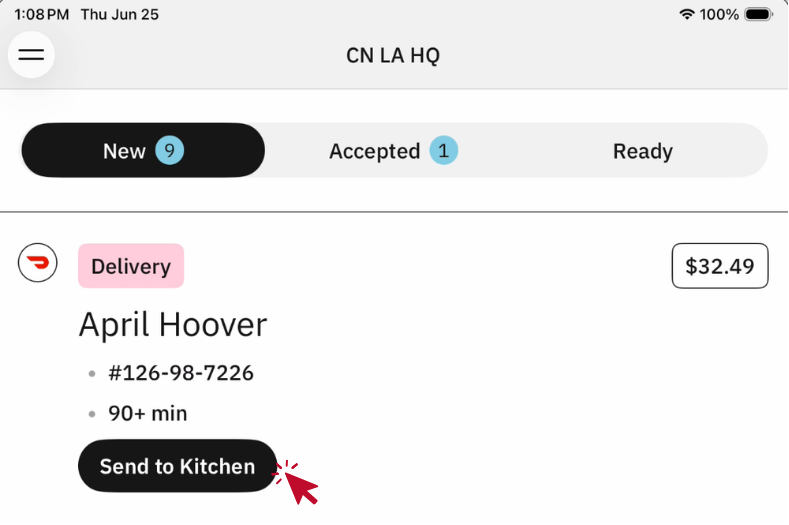
Auto Print ASAP: Off
If you’ve disabled Auto Print ASAP Orders, you will be prompted to manually send all orders to the kitchen.
Android tablet
To find Auto Print:
Under General Settings, open Auto Print ASAP Orders.
Auto Print ASAP Orders: Active

Cuboh sends new orders to the kitchen automatically. Orders go directly to your designated kitchen printer or POS system.
Auto Print ASAP Orders: Inactive

You will be prompted to send each order to the kitchen manually.
Pro tip: Pro tip: we’ve added a quick-action feature to make manually sending new orders to the kitchen faster. Swipe left on a new order to open up the quick-action Send to Kitchen.

Final notes
Most restaurants keep Auto Print on, so they can watch in-progress orders and dispatch them when ready. You can choose whichever works better for your operation. Any order moved to “In Progress” is sent to your POS if you have a POS integration, or to your printer if one is connected to the tablet.