How to Manage Refunds and Upcharges on the Tablet
A step-by-step guide on how to use the tablet to charge for add ons, or refund the items you cannot deliver.
The steps depend on your tablet type:
ChowNow iPad
For Accounts with Order Aggregation Enabled (ChowNow Grow, Elevate, Hub)
Note: At this time, ChowNow orders cannot be refunded through the tablet for restaurants with order aggregation, and must be completed within the ChowNow Dashboard instead.
Read More: How does my restaurant process refunds for ChowNow orders?
Refunds
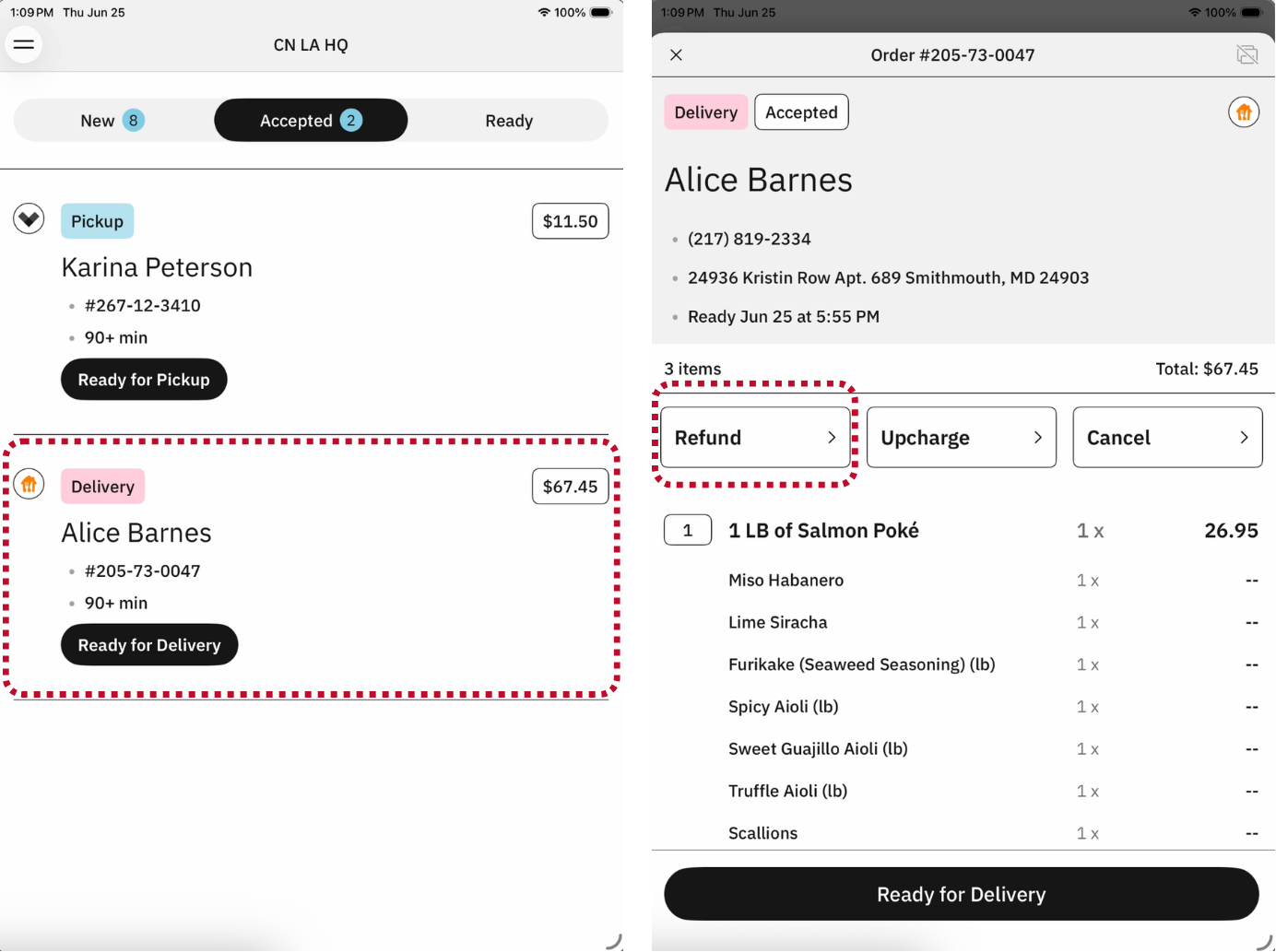
- Navigate to the “Accepted” orders tab, and click into the order you want to refund.
- Click on “Refund”.
![]()
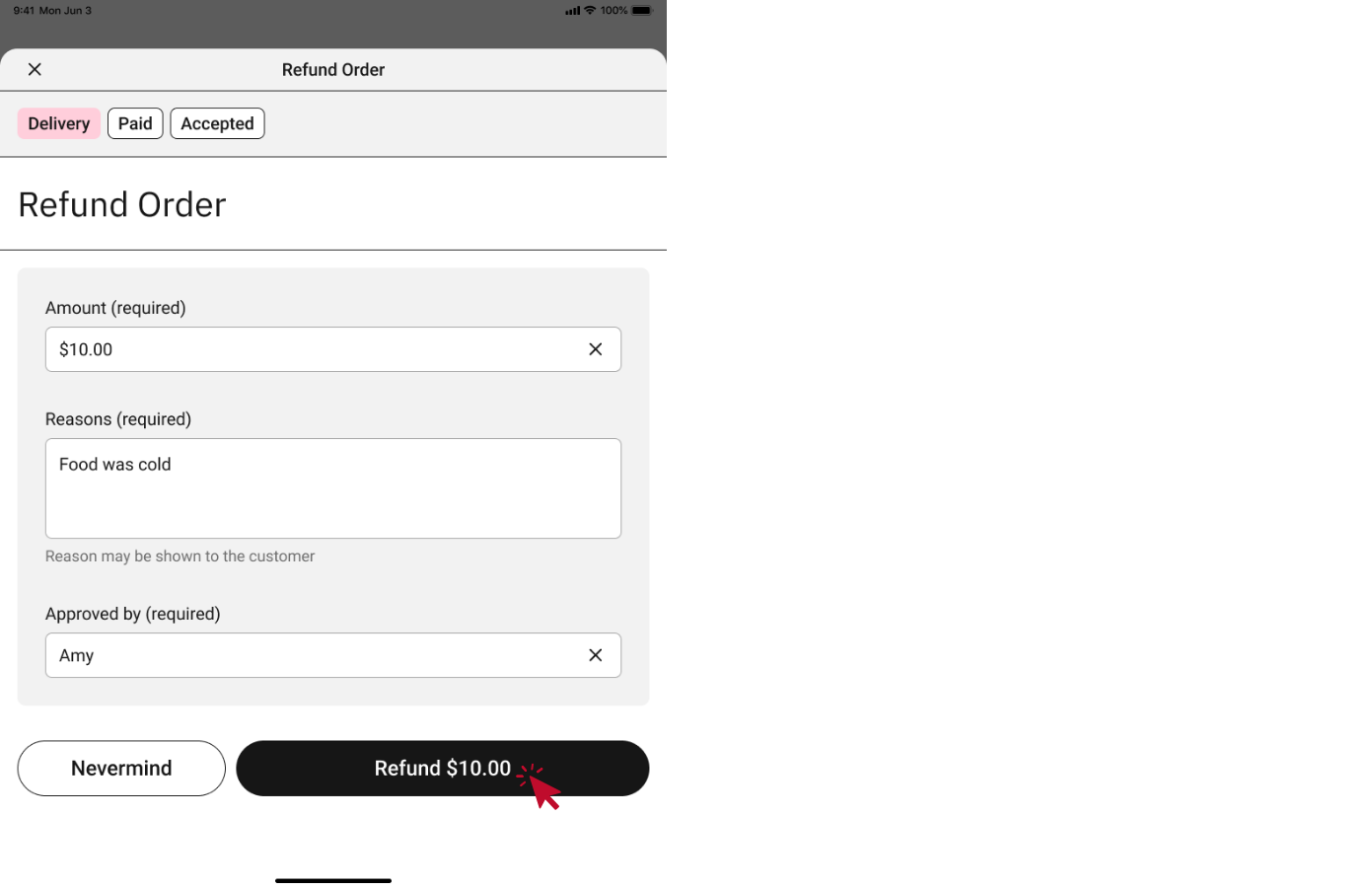
- You will be prompted to enter the amount to be refunded, a reason for the refund, and the approver’s name.
- Click “Refund $X” to confirm.
![]()
Upcharge
Upcharges allow you to charge for special customizations, or specific additions that the customer did not pay for. We recommend you always call the customer before applying an upcharge to make sure they understand an extra charge will be applied.
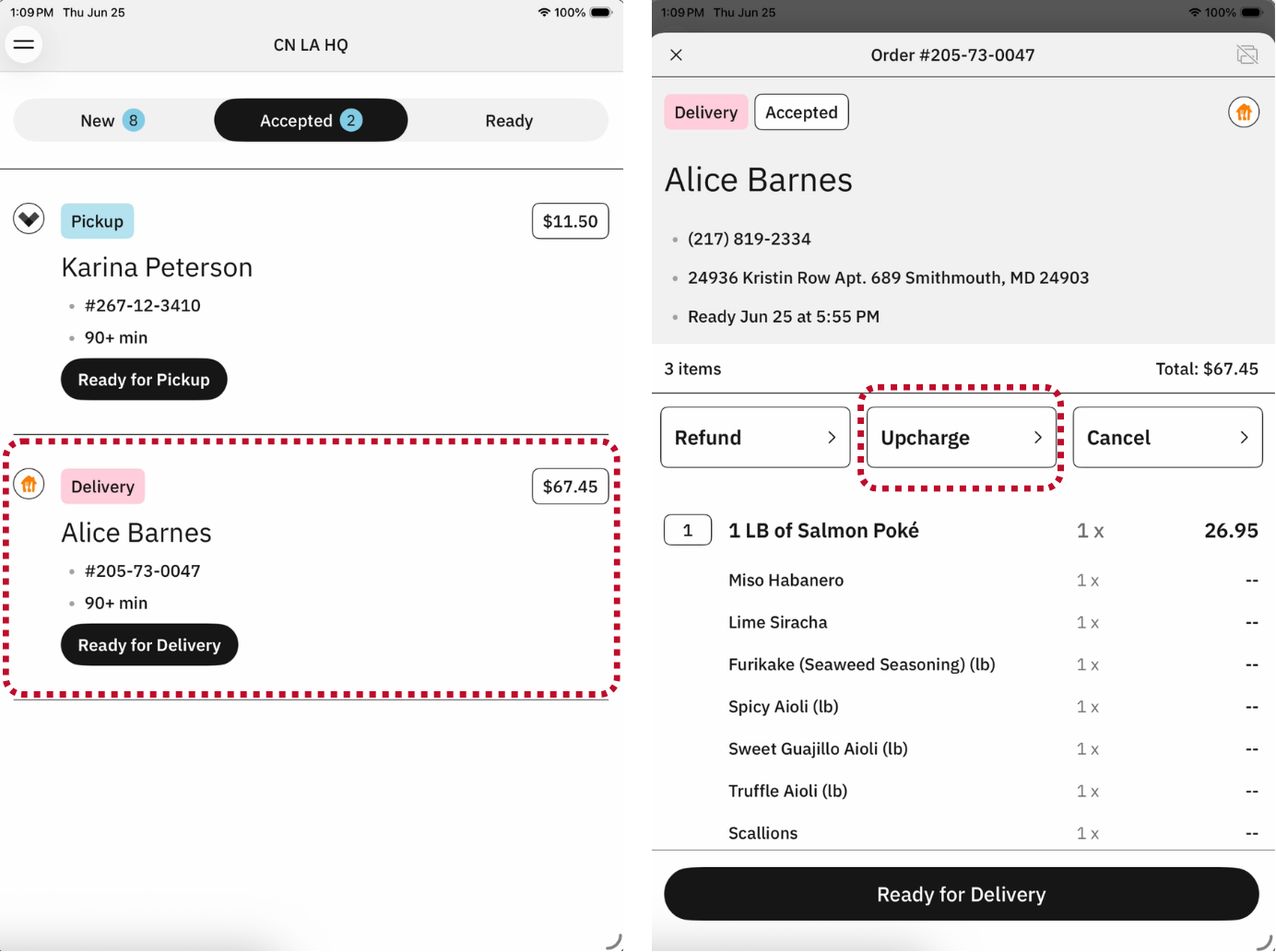
- Navigate to the “Accepted” orders tab, and click into the order you want to upcharge.
![]()
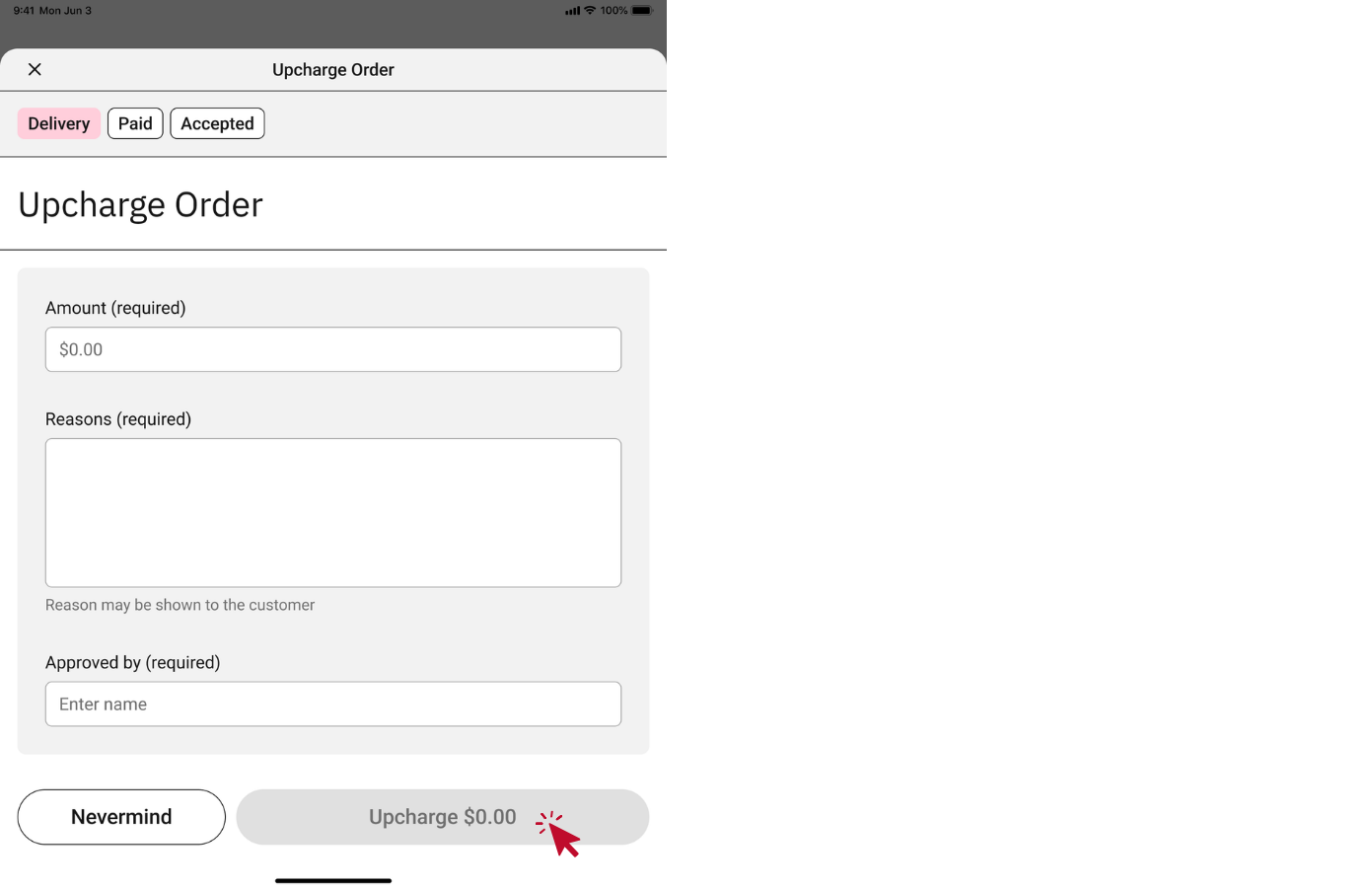
- You will be prompted to enter the amount to be upcharged, a reason for the charge, and the approver’s name.
- Click “Upcharge $X” to confirm.
![]()
For Accounts without Order Aggregation Enabled (ChowNow Launch)
Refunds
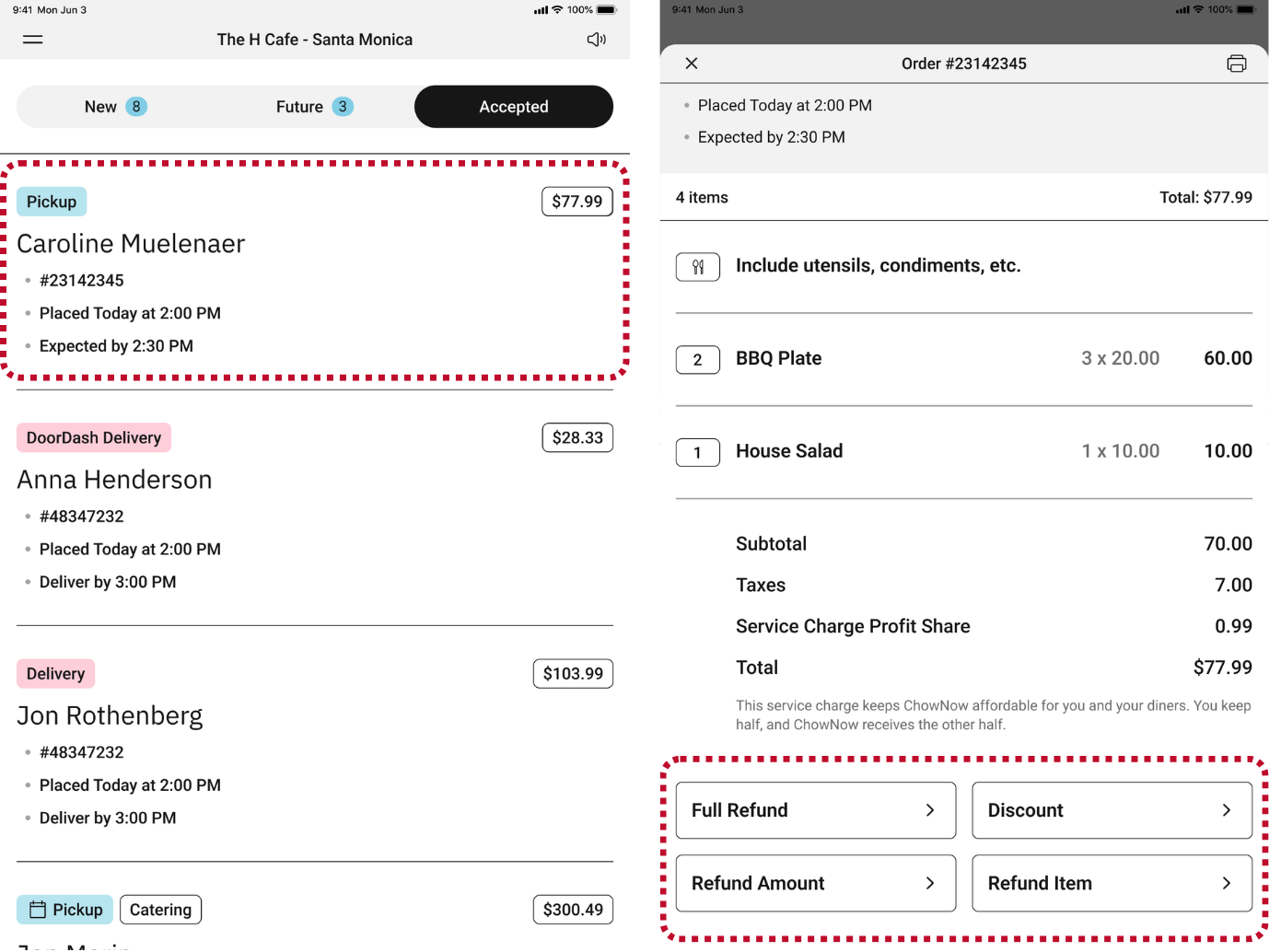
- Navigate to the “Accepted” orders tab, and click into the order you want to refund.
![]()
- Scroll to the bottom of the Order Details page and select the appropriate refund type:
- Full refund: Just add your name to the “Approved by” section, then tap “Refund”.
- Discount: Type in the percentage of the discount, add your name to the “Approved By” section, and tap “Refund”.
- Refund Amount: Type in the dollar amount you would like refunded off the subtotal or tips. Enter your name on the “Approved By” section, then tap “Refund”
- Refund Item: Tap the minus button next to each item that you would like refunded. Enter your name on the “Approved By” section, then tap “Refund”
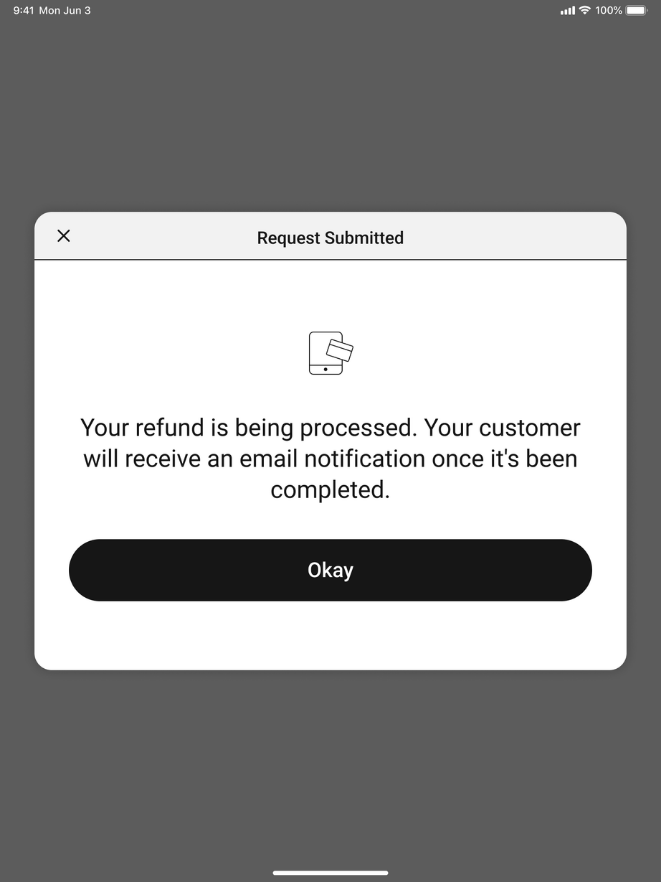
- You will be presented a Refund Requested confirmation screen when complete.
![]()
Android Tablet
Refunds
- Click into the order you want to refund.
- Click on “Refund”.
- You will be prompted to enter an amount and a reason.

Note: Please note that you will be refunding the exact amount you enter (i.e. If you enter $3 as an ‘amount’, you will be refunding $3 directly to the customer)

Upcharges
Upcharges allow you to charge for special customizations, or specific additions that the customer did not pay for. We recommend you always call the customer before applying an upcharge to make sure they understand an extra charge will be applied.
- Click into the order you want to upcharge.
- Click on “Upcharge”.
- You will be prompted to enter the amount to be upcharged, a reason for the charge, and the approver’s name.


If you have any questions, please don’t hesitate to reach out to our support team at [email protected].