How to View Item and Source Ranking Reports in the ChowNow Dashboard
Overview
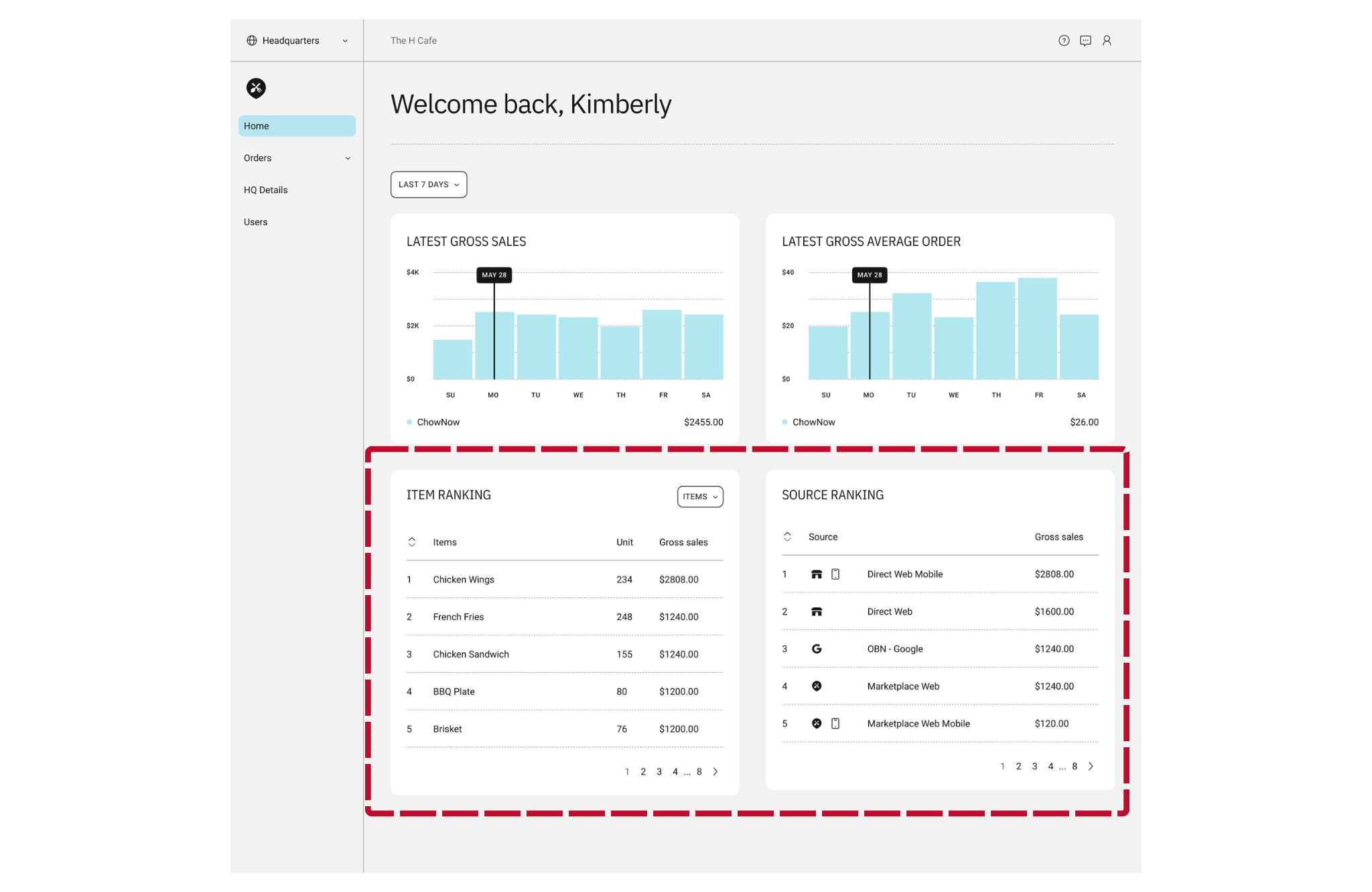
On the Home dashboard, HQ-level users can view two new reporting widgets, Item Rankings and ChowNow Source Rankings, aggregated across all locations.
Note: This view is only available to users with HQ-level dashboard access.
Steps
- Log into your ChowNow Dashboard, select Headquarters in the location picker, and navigate to Home.
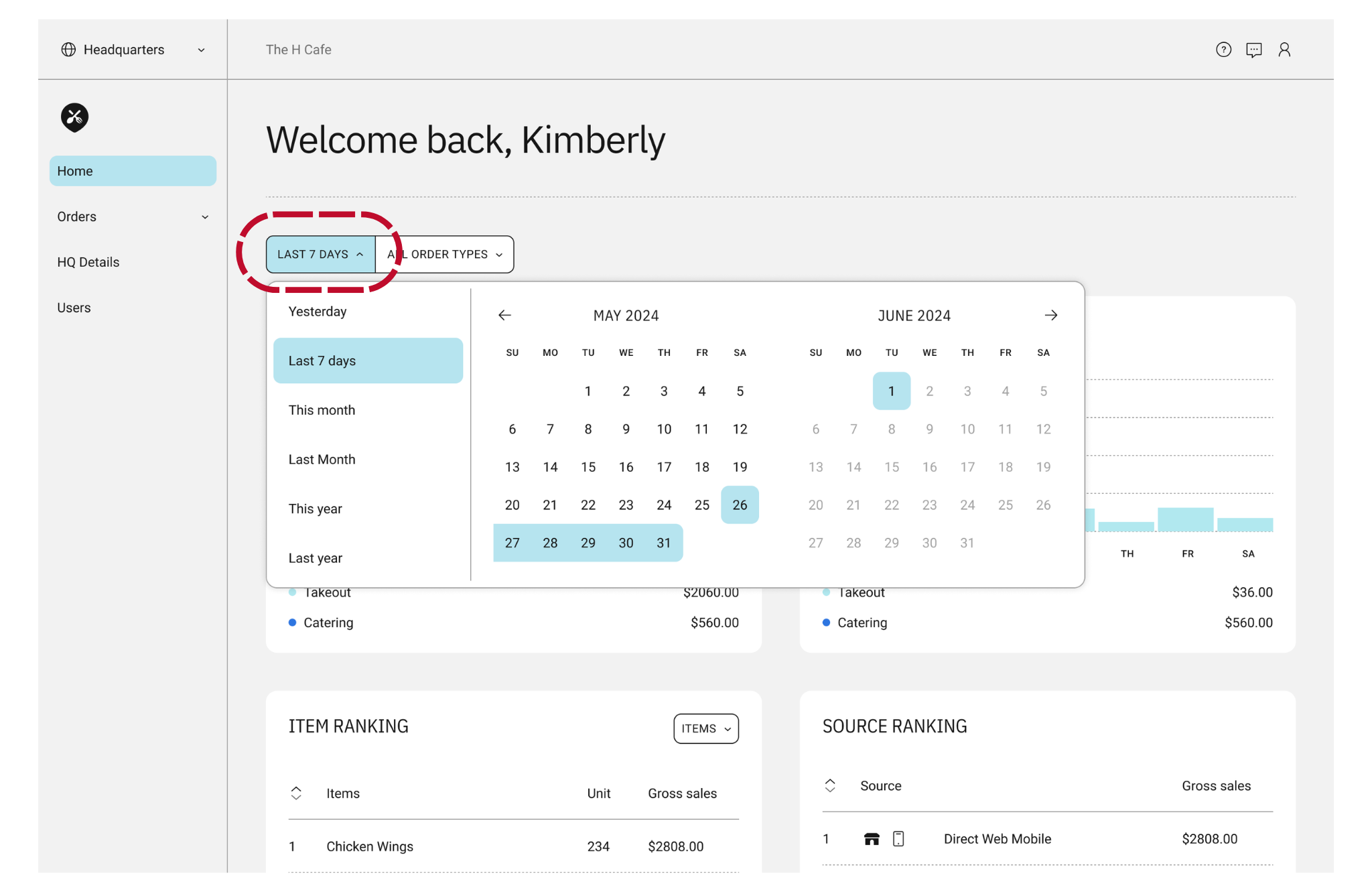
- Select the date range you’d like to view.
![]()
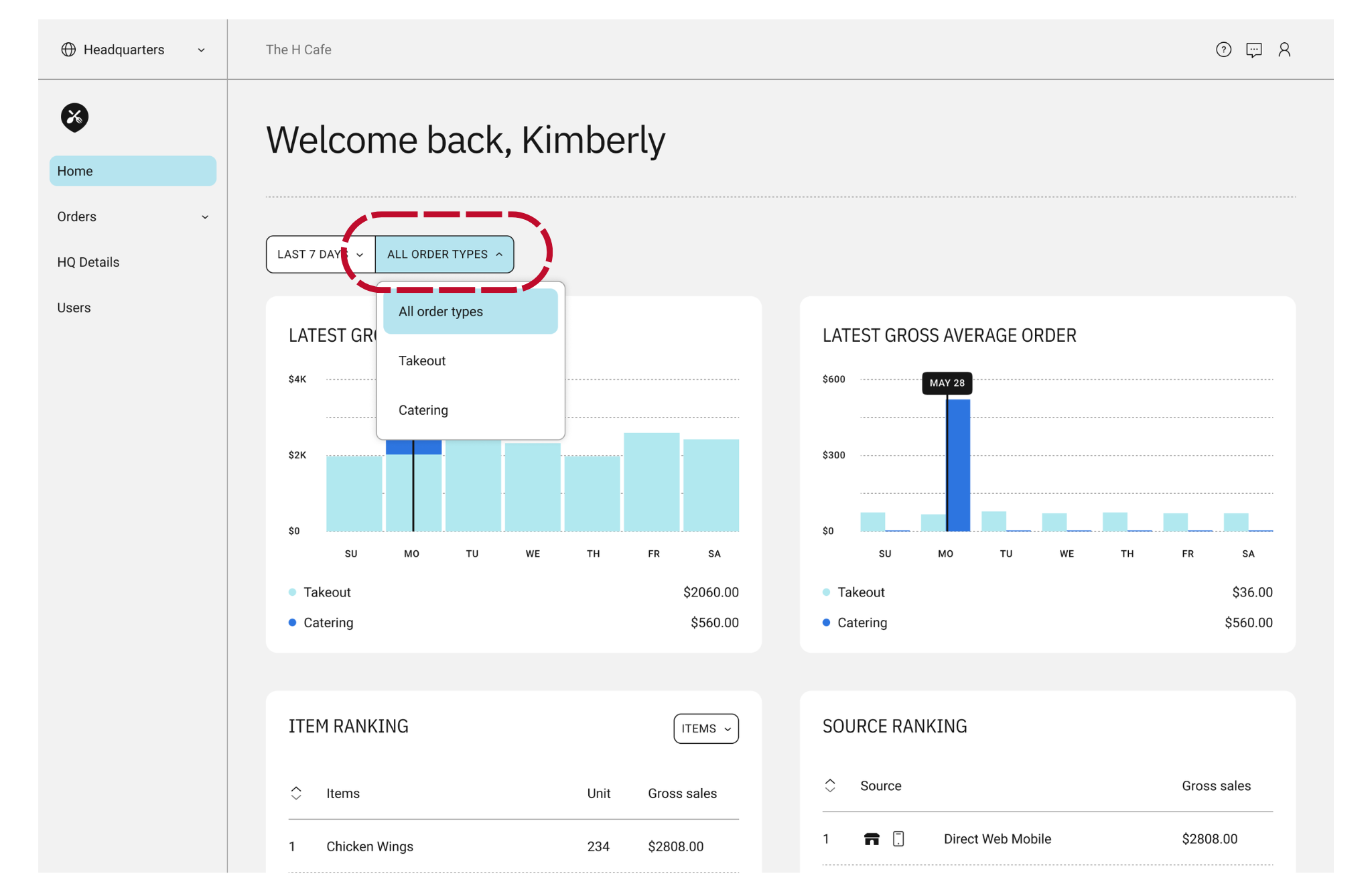
- Select the order type you’d like to see — this option only appears for accounts that offer both takeout and catering with ChowNow.
![]()
Frequently Asked Questions
- Can I export these reports?
Not at this time. Exporting is being considered for a future update — we’ll update this article if that changes. - What do “Highest” and “Lowest” mean in the sort toggle?
By default, both widgets sort from highest to lowest. Item Rankings sorts by quantity sold; Source Rankings sorts by order count. Click the toggle to reverse the order. - Which order sources show up in the Source Ranking widget?
Direct Web, Direct iOS, Direct Android, ChowNow MP Web, ChowNow MP iOS, ChowNow MP Android, and Discovery Network (formerly called Order Better Network). A source only appears if it had at least one order in your selected date range. - Does this include orders from third-party platforms like Uber Eats, DoorDash, or Grubhub?
No. These widgets only reflect orders placed through ChowNow (direct and ChowNow Marketplace). If a restaurant has integrated third-party delivery platforms, those orders won’t appear in either widget. - Why don’t I see the order type filter?
It only appears for accounts that offer both takeout and catering. If you only offer one order type, the filter won’t display. - Why is my Item Rankings widget empty?
This means there were no completed orders in the date range you selected. Try widening your date range.