How to enable Catering?
In this Article:
Enabling Catering
If you would like to enable catering, reach out to your Restaurant Success Manager to unlock this feature so we can being to get everything set up. Please note, catering orders will be charged a 5% commission.
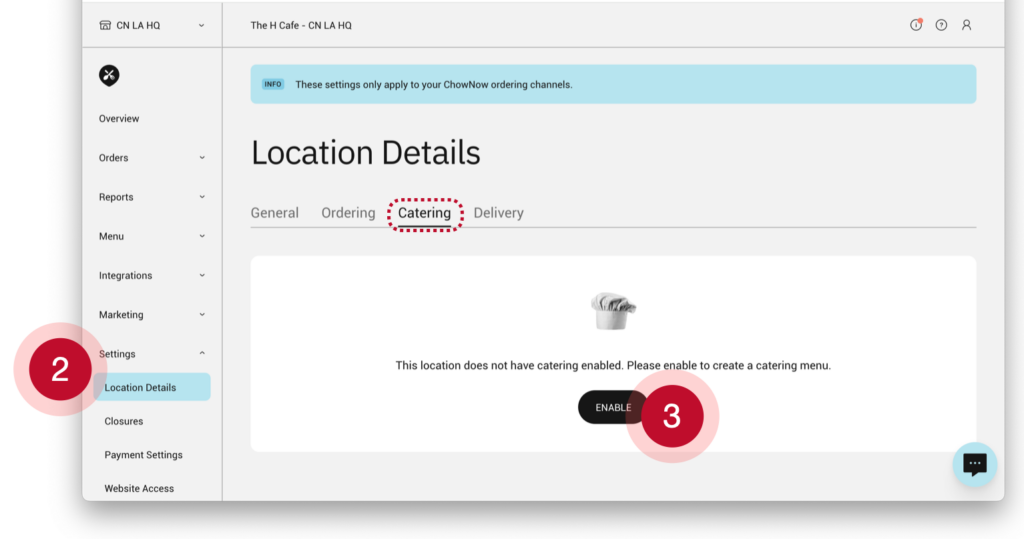
- Login to your ChowNow Dashboard
- Click on “Settings” then “Location Details” and then the “Catering” tab
- Click “Enable”
![]()
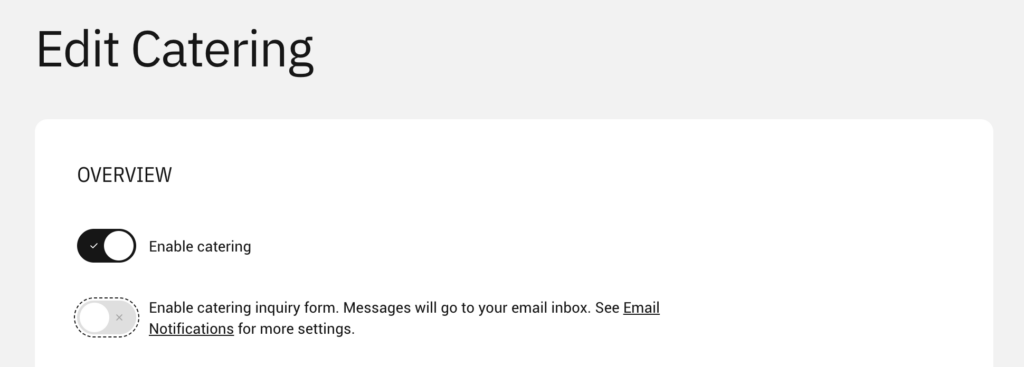
- Toggle the “Enable Catering” switch
- Then configure the options based on your preferences for catering orders
![]()
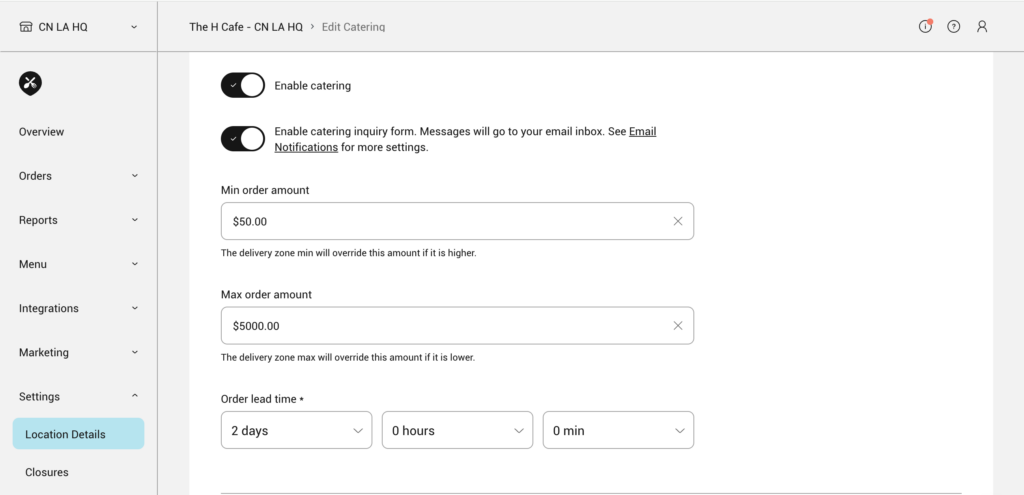
- Min Order Amount – Prevent too small catering orders by setting a minimum order amount.
- Max Order Amount – Prevent too big of catering orders by setting a maximum order amount.
- Pickup order ahead – Select the amount of time that customers can schedule a pickup order in advance (30 days max)
- Delivery order ahead – Select the amount of time that customers can schedule a delivery order in advance (30 days max)
- (Optional) Order throttling – Set the maximum amount of catering orders you will allow to be submitted every 15 mins.
Setting Up Inquiry Forms
By default, catering inquiry forms will be enabled. Inquiry forms are a great solution for customers that have questions about options outside of your standard catering menu. You can view an example form here.
You’ll want to provide a good email address for these submissions to go:
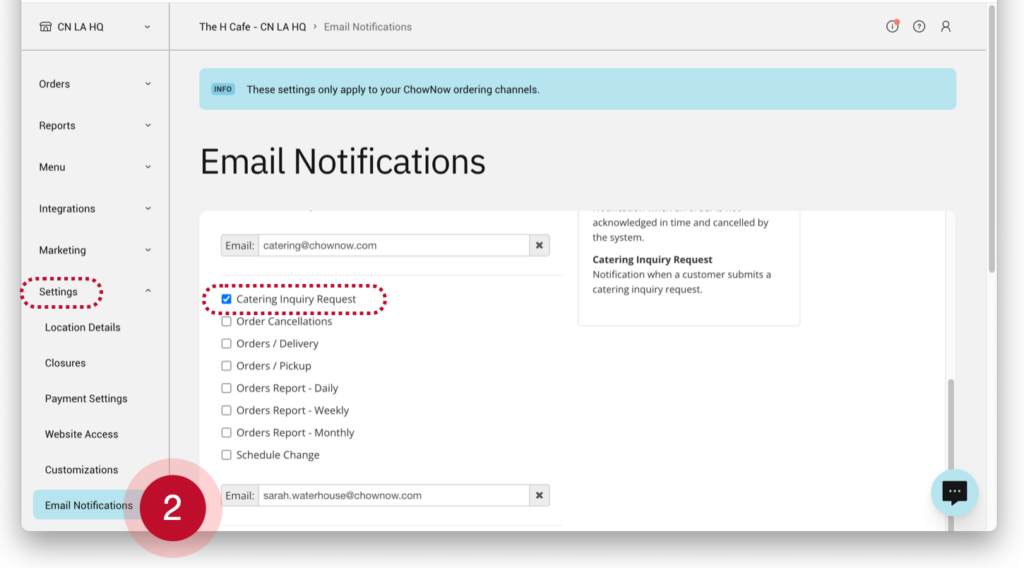
- On the ChowNow Dashboard
- Click on “Settings” then “Email Notifications”
- Check the “Catering Inquiry Request” checkbox under any emails addresses you would like to receive this communication.
- Scroll to the bottom of the page, click “Save”
To disable Catering Inquiry Forms:
- Click on “Settings” then “Location Details”
- Click on the “Catering” tab, then the pencil icon to edit these settings.
- Flip the toggle for inquiry forms.
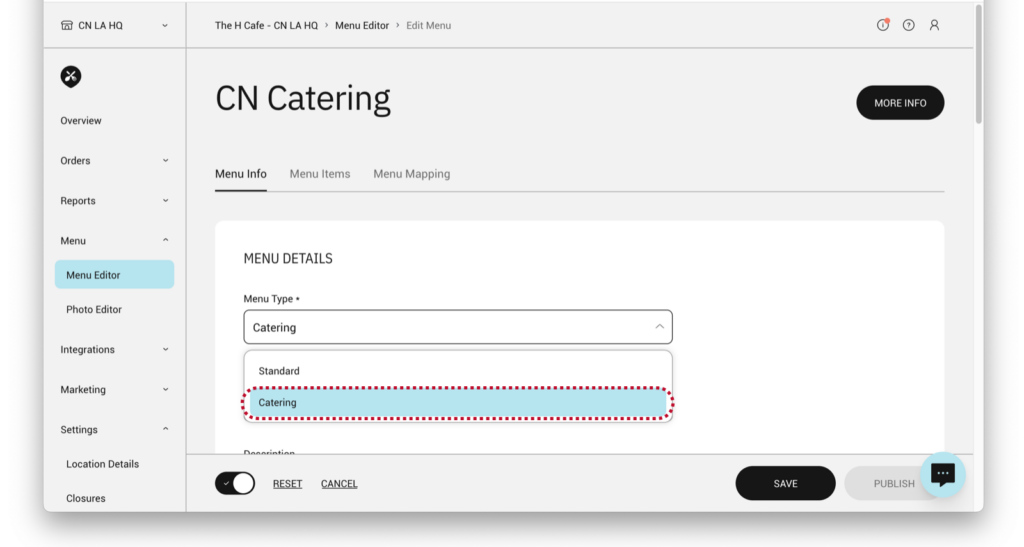
Once catering is enabled, you’ll be able to designate any menu as a “Catering” menu.
- Click on “Menu” then “Menu Editor”
- Click the pencil icon to edit the menu you would like to switch to catering.
- From the “Menu Type” drop down, change the menu from standard to catering.
- Click “Save”
If you need assistance building a brand new catering menu, please reach out to our support team.
Updating Your Website
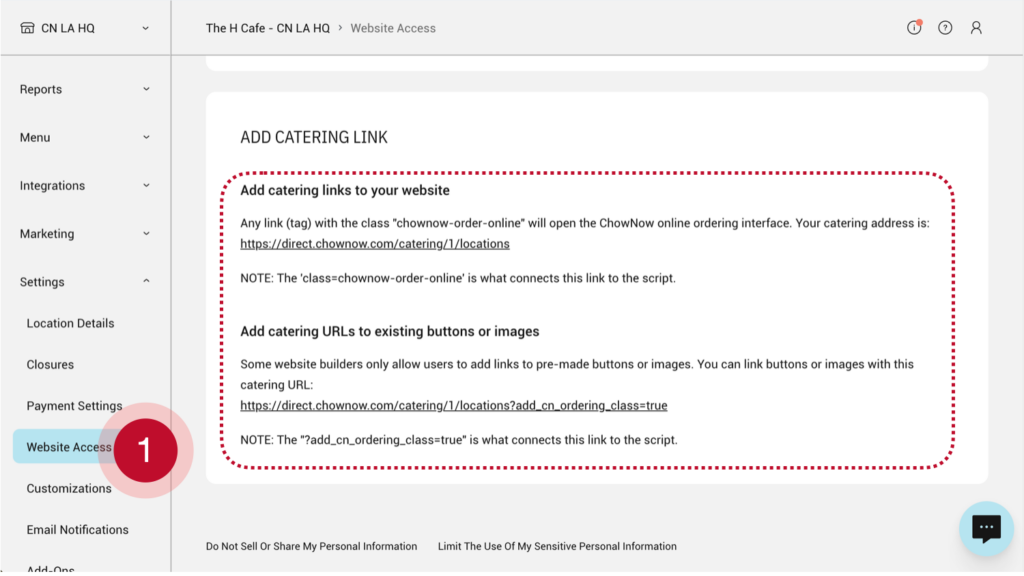
Adding a “Order Catering” button to your website is a great way to let your customers know that can place catering orders right on your website.
- Click on “Settings” then “Website Access”
- Scroll down until you see the Add Catering Link instructions.
- Please provide these instructions to your web developer or reach out to our support team for assistance.