How does my restaurant process refunds for ChowNow orders?
Order refunds can be submitted on the ChowNow Business Manager app and the ChowNow Dashboard. For orders more than 7 days old, please reach out to [email protected] to complete the refund.
Step by Step Dashboard Instructions
- Log in to your ChowNow dashboard.
- Click on Headquarters, then the location that wants to submit a refund.
- Navigate to “Orders”, and select “ChowNow Orders”.
- You can search for the order number, then click on the order number you would like to refund.
- Click “REFUND”, then select the type of refund you would like to issue.
![]()
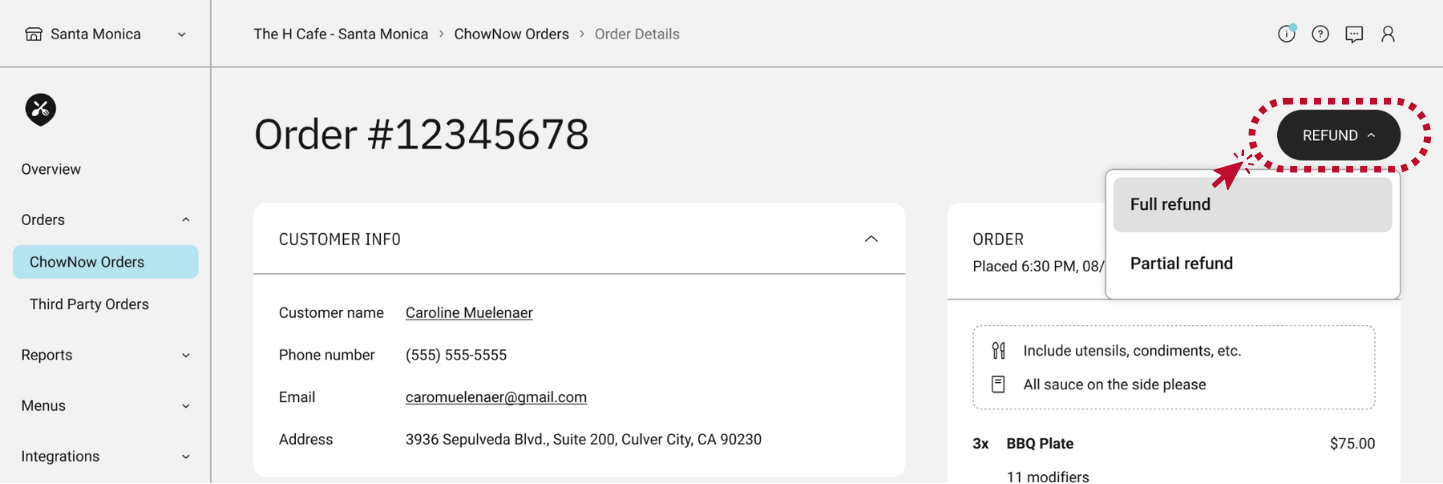
Full Refund
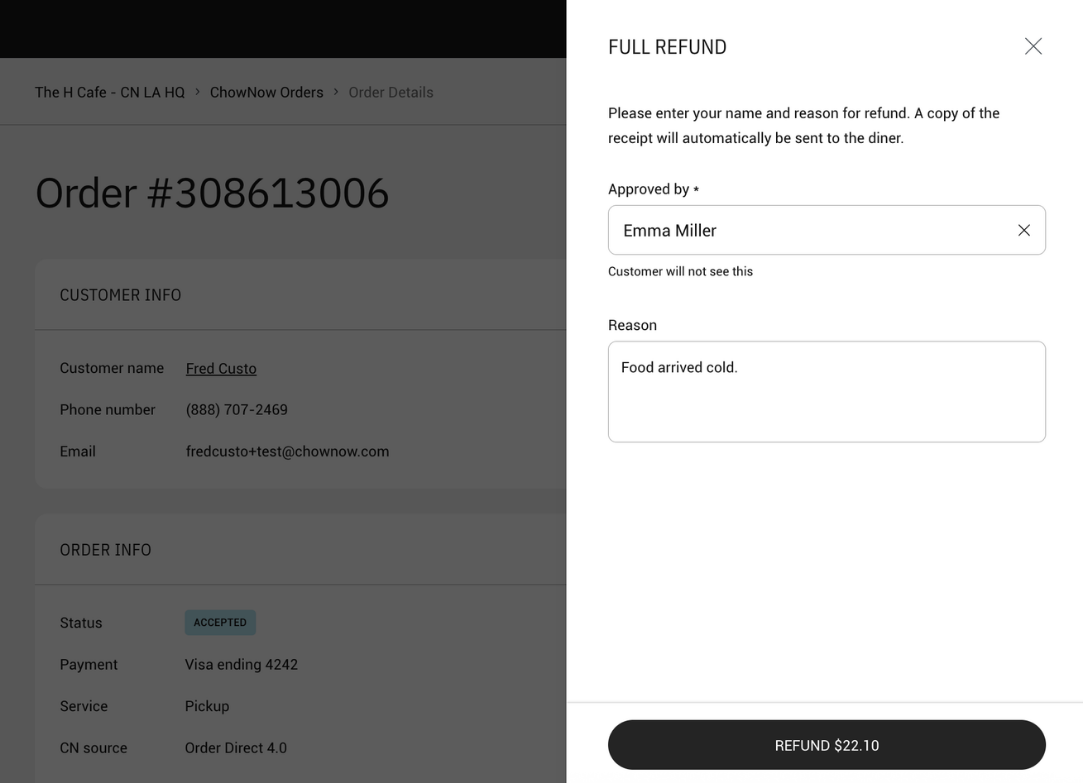
- Enter the name of the refund approver and the reason for the refund.
- Click the “REFUND $X” to submit the refund.
![]()
Partial Refund
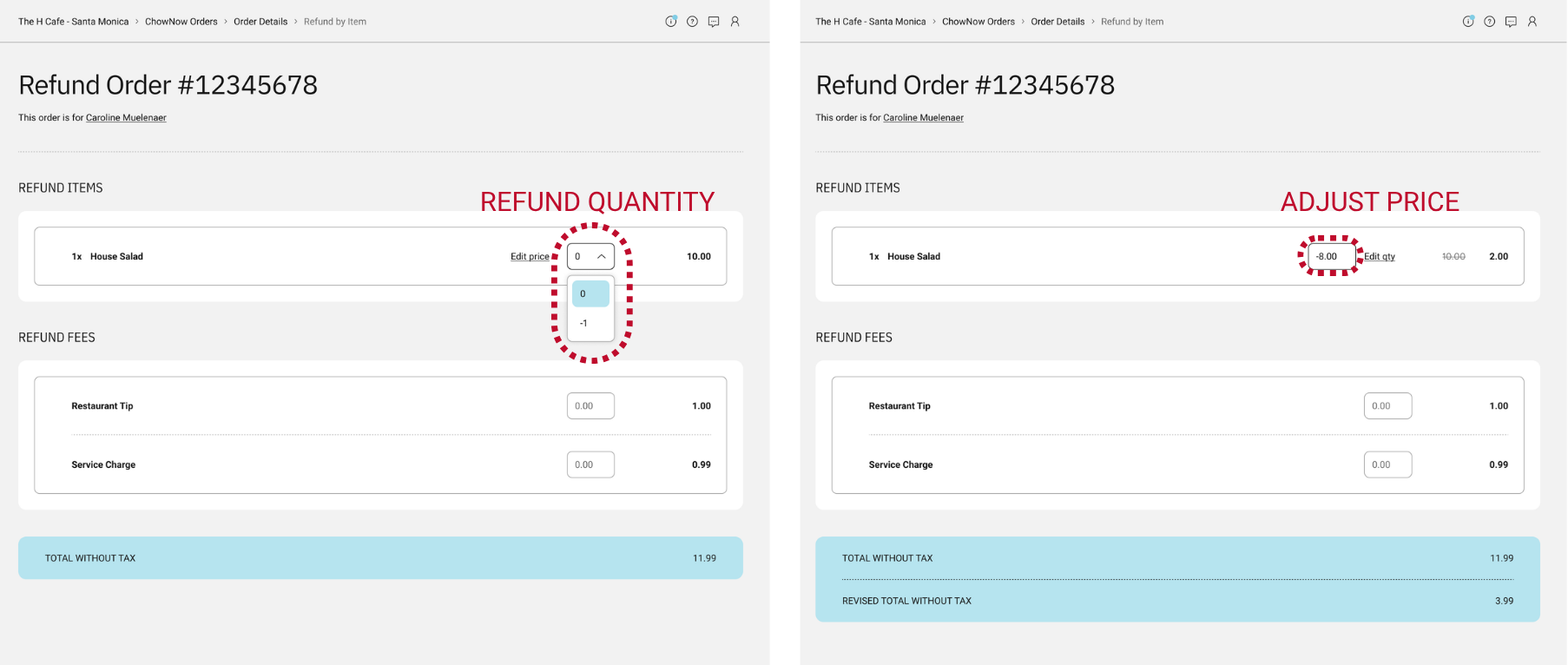
- For Partial Refunds, you can refund individual items, modifiers, fees, or specific dollar amounts. One partial refund is permitted per order.
- Select the quantity of each item you would like to refund. Once the quantity is selected, you have the option to refund the entire cost, or set a custom refund amount by selecting “Edit price”.
![]()
NOTE: Orders with discounts applied are eligible for Full Refunds only. Partial Refunds cannot be applied to these orders.
Orders with Paid Modifiers
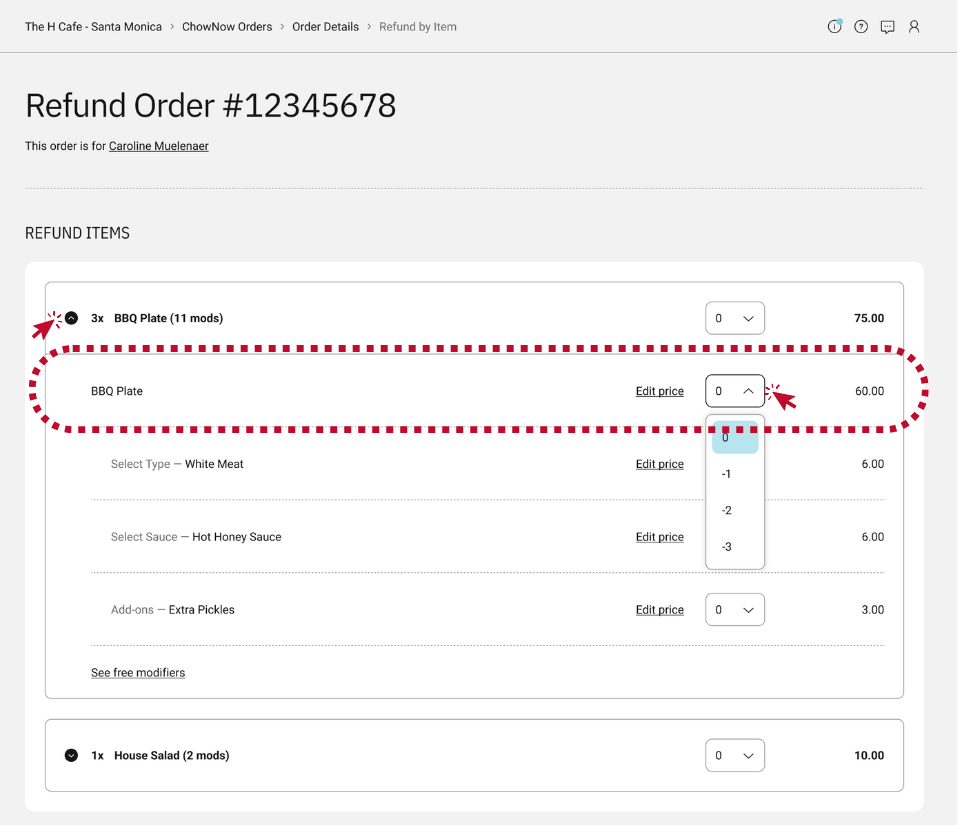
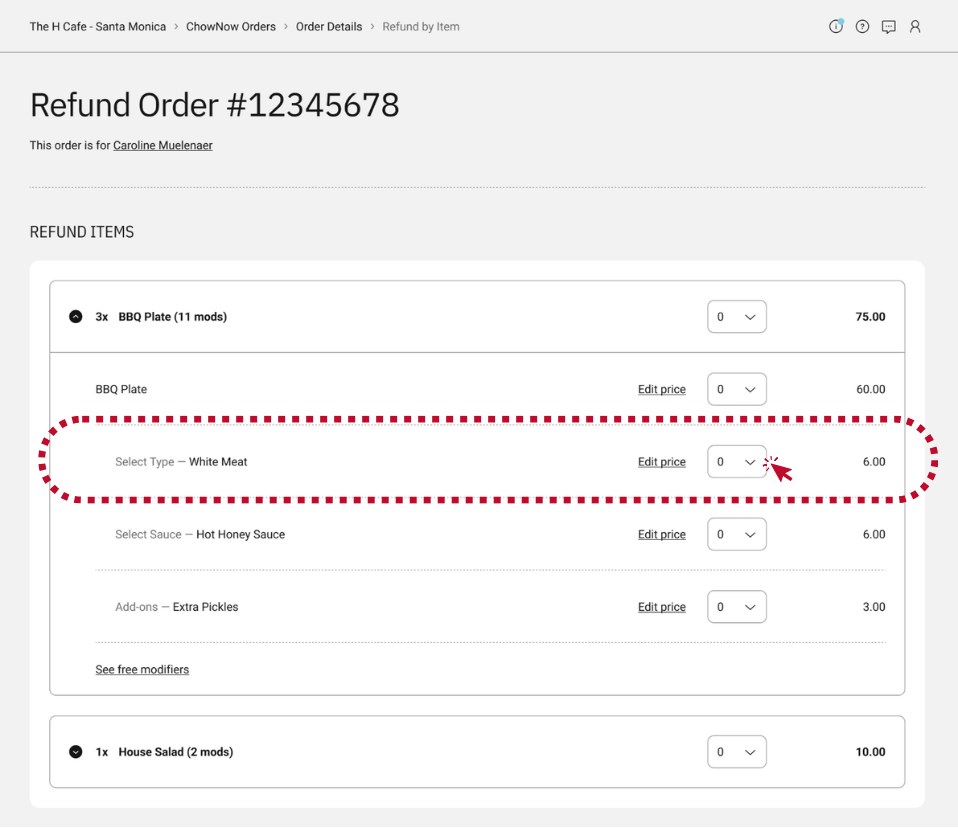
- To refund the the base item only, click the down arrow next to the item and select the quantity or price to be refunded.
![]()
- To refund a, individual paid modifier, click the down arrow next to the item and select the quantity of the modifier to be refunded.
![]()
Orders with Fees
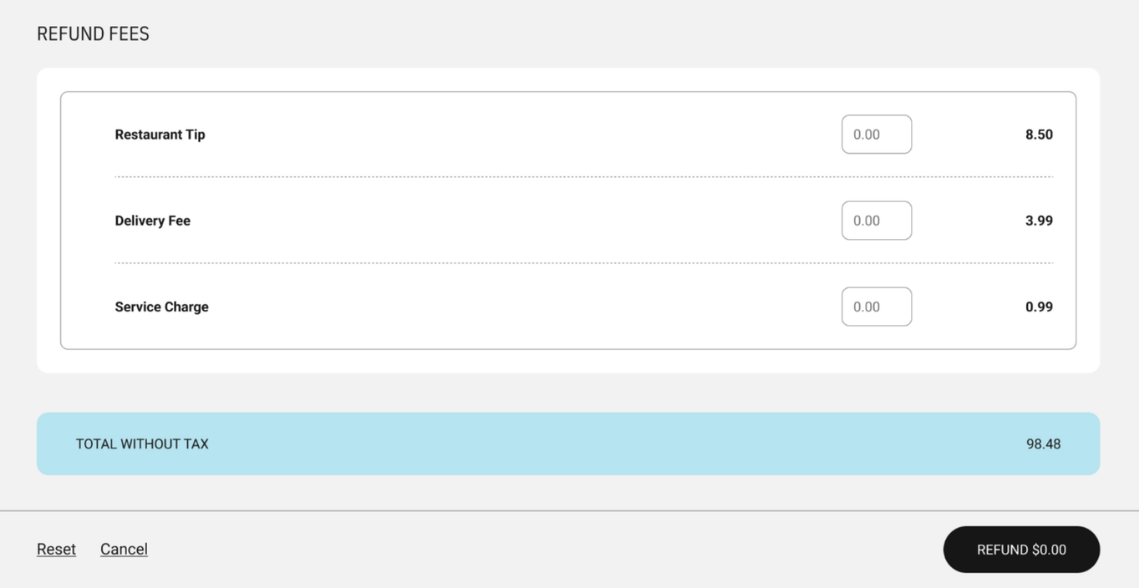
- To refund fees, like a service or delivery fee, enter the amount to be refunded for each fee under “REFUND FEES”.
![]()
Submitting a Partial Refund
- To confirm the refund, click “REFUND $X”.
- Enter the name of the refund approver and the reason for the refund.
- Click “CONFIRM” to submit the refund.