How to set up your Square POS Menu for Import
The ChowNow import pulls from your Square Item library. In order to have your Square menu import correctly into ChowNow, please ensure that each Item in your Square Item library is assigned to both a Category and a Reporting category. If you are using Modifier Sets, please ensure that they are properly applied to your Items.
Note: If certain items or modifiers are missing after import, they are likely not configured correctly in your Square POS.
Important: Item type: Combo is not currently supported for import.
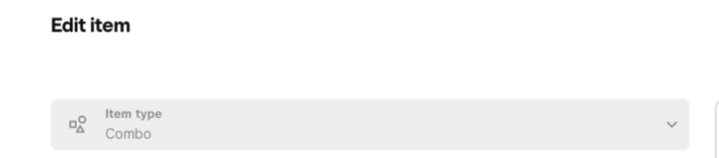
For help with setup, please refer to these Square support articles on Item Categories and Modifier Sets, or review the steps below.
Adding Item Categories and Reporting categories
To add a Category and Reporting category to a single item:
- Sign in to your Square Dashboard and click Items & services (or Items & menus or Items & inventory) and go to Items.
- Click on the selected item from the list.
- Click Select within the Categorization section.
- Tick a Category and Reporting category from the list > click Done.
- Click Save.
To add a Category to multiple items:
- Sign in to your Square Dashboard and click Items & services (or Items & menus or Items & inventory) > Items > Categories.
- Click on the selected item category.
- Click Add items within the Items section.
- Tick the items you want to apply the category to > click Done.
- Click Save.
To add a Reporting category to multiple items:
- Sign in to your Square Dashboard and click Items & services (or Items & menus or Items & inventory) and go to Items.
- Click the Edit Items button.
- On the bulk edit page, click Attributes and ensure a Reporting category is selected.
- Change the Reporting category field to your desired category.
- Click Save.
Adding Modifier Sets
To apply Modifier Sets to a single Item:
- Sign in to Square Dashboard and go to Items & services (or Items & menus or Items & inventory) > Items > Modifiers.
- Select an existing item or Create item.
- Click Add within the Modifiers section.
- Select a modifier set (or several of them) from the list > click Done.
- Click Save.
To apply Modifier Sets to multiple Items:
- Sign in to Square Dashboard and go to Items > Modifiers.
- Click on Apply to items on the relevant modifier set.
- Select the items you want to apply the modifier set to.
- Click Apply to Items.
To apply Modifier Sets to a menu:
You can apply modifier sets to your menu items from the menu editor. Once you apply a modifier set, the modifier set name appears beneath the item name.
- Sign in to Square Dashboard and go to Items > Menus.
- Click Add Modifiers.
- Search for the existing modifier set you want to use.
- Select the display group or individual items to which the modifier will apply.
- Click Apply to Items.