How to Set Up POS Menu Auto Sync & Auto Publish
Overview
POS Menu Auto Sync & Auto Publish keeps your ChowNow menu up to date automatically. Once enabled, any menu change you save in your POS is synced and published to ChowNow — no manual re-entry in the dashboard required.
This feature is available for restaurants using Square or Clover.
Note: If you use Toast, your menus are already synced through a separate integration.
Before You Begin
Your restaurant must be integrated with Square or Clover through ChowNow.
Square only: Your menu must be set up in the Menus section of your Square dashboard. This feature will not work if you are using only the Item Library in Square.
If you already have a POS menu imported in ChowNow, you will need to complete a fresh import from your POS before enabling Auto Sync/Publish for the feature to work correctly.
- Important: If you’re choosing the Fully automated workflow, this first import will replace any photos and item descriptions on your existing ChowNow menu. If you’ve added photos or descriptions in ChowNow that aren’t in your POS, save copies before you begin — you’ll be able to re-add them after the import, and they won’t be overwritten by future syncs.
- Clover only: Photos don’t currently import from Clover. You can add them in ChowNow under the Photos tab after your menu imports, and they won’t be overwritten by syncs. Item descriptions and modifier settings do import.
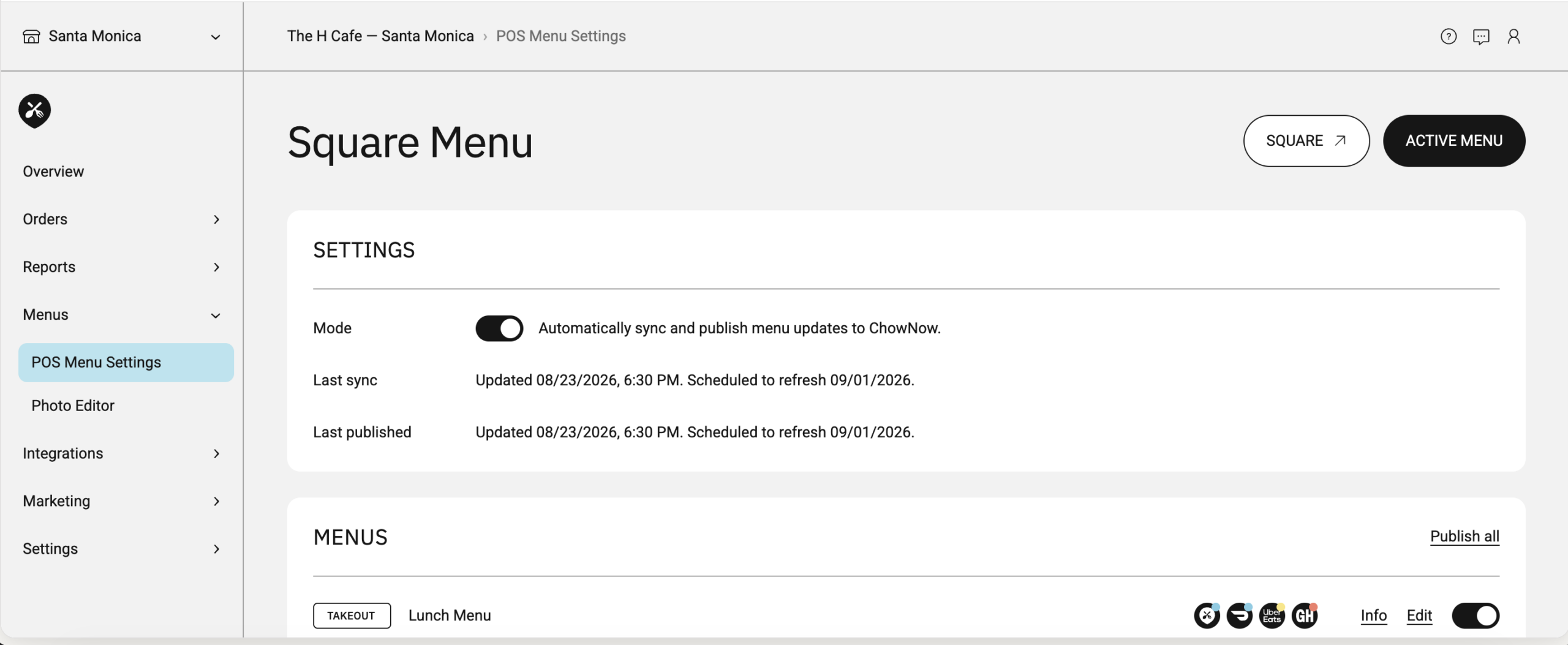
Enabling Auto Sync & Auto Publish
- Loginto your ChowNow Dashboard at dashboard.chownow.com
- Click Headquarters in the left sidebar and select your location
- Navigate to Menu > POS Menu Settings
- In the settings drawer, select your preferred workflow and then click save settings:
- Fully automated — When you edit your POS menu, ChowNow will auto-sync and publish your updates. Changes will go live on your ordering apps within minutes.
- Auto-sync, manual publish — When you edit your POS menu, ChowNow will auto-sync your updates. Changes won’t go live on your ordering apps until you click “Publish.”
- Manual sync, auto publish — When you click “Sync and Publish,” changes made on your POS carry over and go live on your ordering apps.
- Fully manual — When you click “Sync,” edits made on your POS carry over to your menus. Changes won’t go live on your ordering apps until you click “Publish.”
- Auto-sync, manual add — Changes on your POS menu auto-sync, but won’t appear on your ordering apps until you add them. Orders will still flow into your POS without manual mapping.

After Enabling: What Changes
- Menu items, categories, and modifiers sync from your POS — once Auto Sync and Auto Publish are enabled, core menu changes (items, categories, modifiers) should be made in your POS. Exception: photos and item descriptions you add directly in the ChowNow menu editor will not be overwritten by syncs and can still be managed from ChowNow.
- Menu-level settings remain editable — hours, integrations, tax rate, and other menu settings can still be updated from your ChowNow dashboard.
- 86ing is unchanged — marking items in or out of stock works exactly the same as before.
Making Menu Changes
Once Auto Sync is enabled, make all menu changes directly in your POS system.
Changes will sync to ChowNow automatically based on your chosen workflow.
If a change isn’t appearing or you need to push an update immediately, use the Sync & Publish POS Menus button in your ChowNow dashboard to manually trigger a sync.
Frequently Asked Questions
Will edits I make in ChowNow sync back to my POS?
No — the sync is one-way: POS to ChowNow only. If there is a conflict between your POS and ChowNow menu, your POS is always the source of truth.
Does this affect my other delivery platforms (Uber Eats, DoorDash, etc.)?
It depends on how your menus are set up. If your third-party channels are attached to the same ChowNow menu, publishing carries through to them as well. If they run on separate menus created in your POS, they’re managed independently and your ChowNow Auto Sync settings won’t affect them. Reach out to Support if you’re not sure which applies to you.
I already have a menu imported from my POS. Do I need to do anything?
Yes — if Auto Sync is being enabled on a location that already has a POS menu imported, you’ll need to do a fresh import from your POS for the sync to work correctly.
How quickly do POS changes appear on ChowNow?
For Square and Clover, changes typically sync within minutes of saving in your POS. If a change isn’t appearing, use the Sync & Publish POS Menus button to trigger a manual sync.
Can I add photos or descriptions directly in ChowNow without them being overwritten?
Yes — photos and item descriptions you add directly in the ChowNow menu editor will not be overwritten when Auto Sync & Auto Publish is enabled. POS changes sync all other menu fields, but ChowNow-specific edits to photos and descriptions are preserved.
Does this change how I mark items out of stock?
No — 86ing works exactly the same as it does today.
Why can’t I edit my menu items in ChowNow anymore?
When both Auto Sync and Auto Publish are on, the Items section of the ChowNow menu editor is read-only by design — this is what keeps your two menus from drifting apart. Make item, category, and modifier changes in your POS and they’ll sync over. Your menu-level settings under the Details tab (hours, tax rate, integrations) and your photos and item descriptions are all still editable in ChowNow.
Will I lose the photos and descriptions I’ve added in ChowNow?
On the Fully automated workflow, yes — during the initial fresh import when you first enable the feature. After that import, photos and item descriptions you add in the ChowNow menu editor are preserved and won’t be overwritten by syncs.