Introduction to Menu Editor
The Menu Editor tool gives you a central hub to manage all your third party menus in one place.
Note: Menu Editor is the updated version of Menu Management. All of your existing menus and features are still here – now with a cleaner, more intuitive design to make managing your menus easier than ever.
Menu Editor gives you the power to
- Import your online menus directly into Cuboh
- Add or edit menu names, hours, categories, descriptions, and prices
- Enable and disable menu items, categories, and modifiers
- Delete menu items, categories, and modifiers
- Edit menu modifier groups and menu modifiers
- View a preview of your menu before making it live
- Publish all new updates straight to your delivery partners in real-time
Menu Editor walkthrough
Log into the new ChowNow Dashboard and under your Location view, navigate to Menu > Menu Editor.
Click on the ACTIONS Button to Create Menu, Import Menus, or Publish Menus.
Click on the ALL MERCHANTS button to toggle between merchants.
Click and drag the three horizontal lines to rearrange your menus.
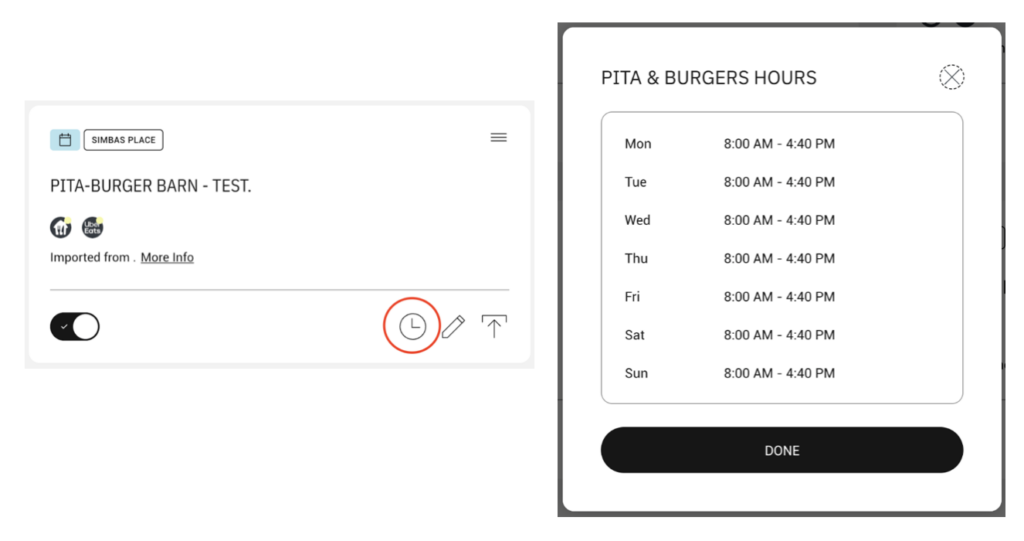
Click on the clock icon to view your Menu Hours.
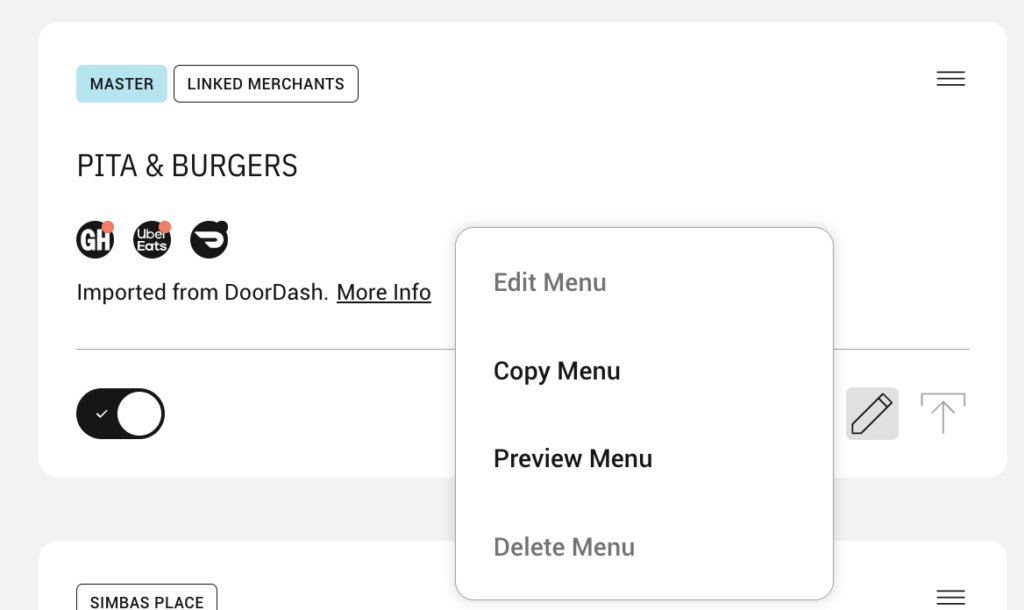
Click on the pencil icon to Edit Menu, Copy Menu, Preview Menu, or Delete Menu.
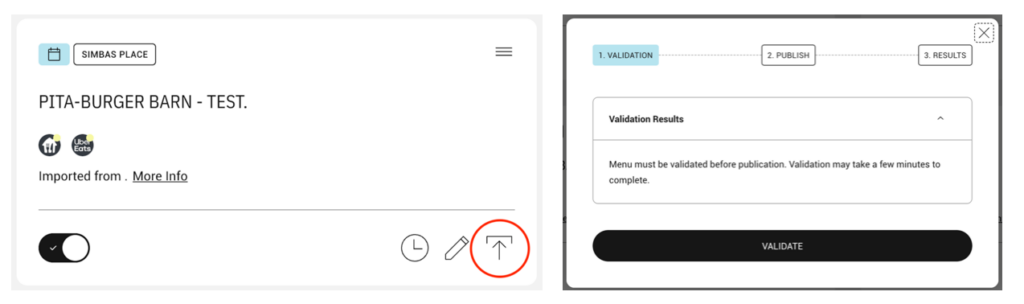
Click on the upload icon to Validate and Publish your Menu.
Within Edit Menu, you will see a tab for Menu Info, where you can view:
Menu Details
You will also see a tab for Menu Items, where you can edit your menu – Categories, Items, Groups (formerly Modifier Groups), Modifiers, Images, etc.
